 +
+
ToBeSorted2
Built for DJs. Built by DJs.
What ToBeSorted2 does
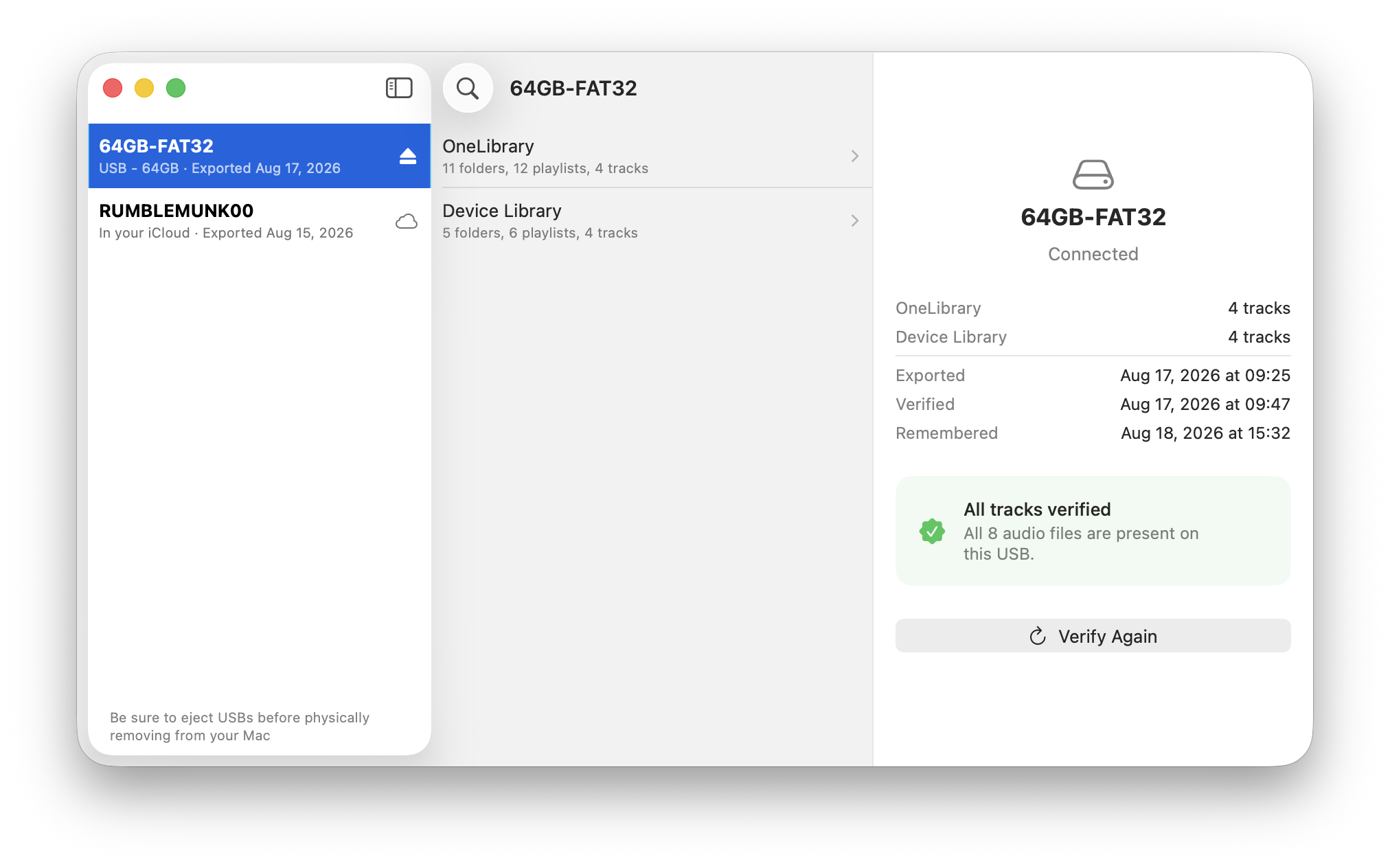
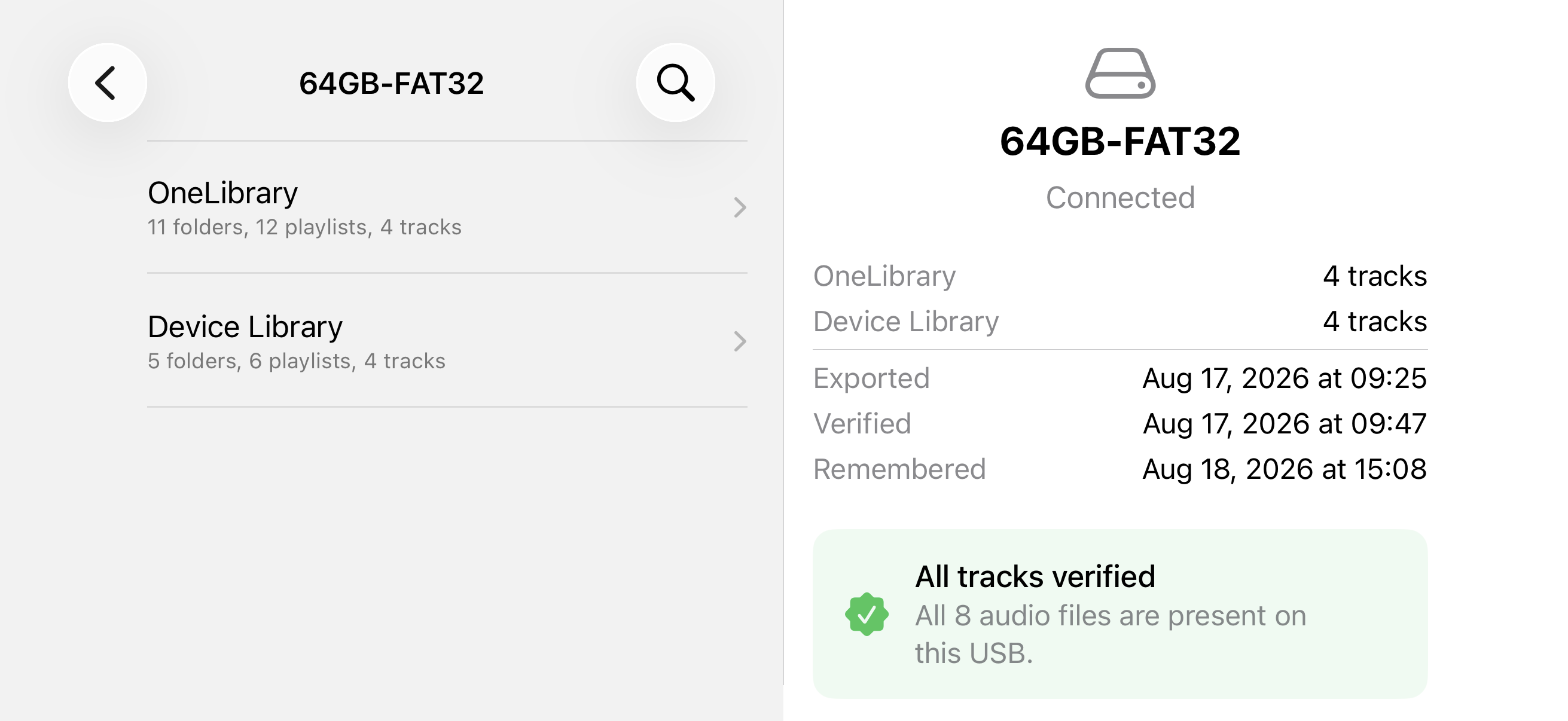
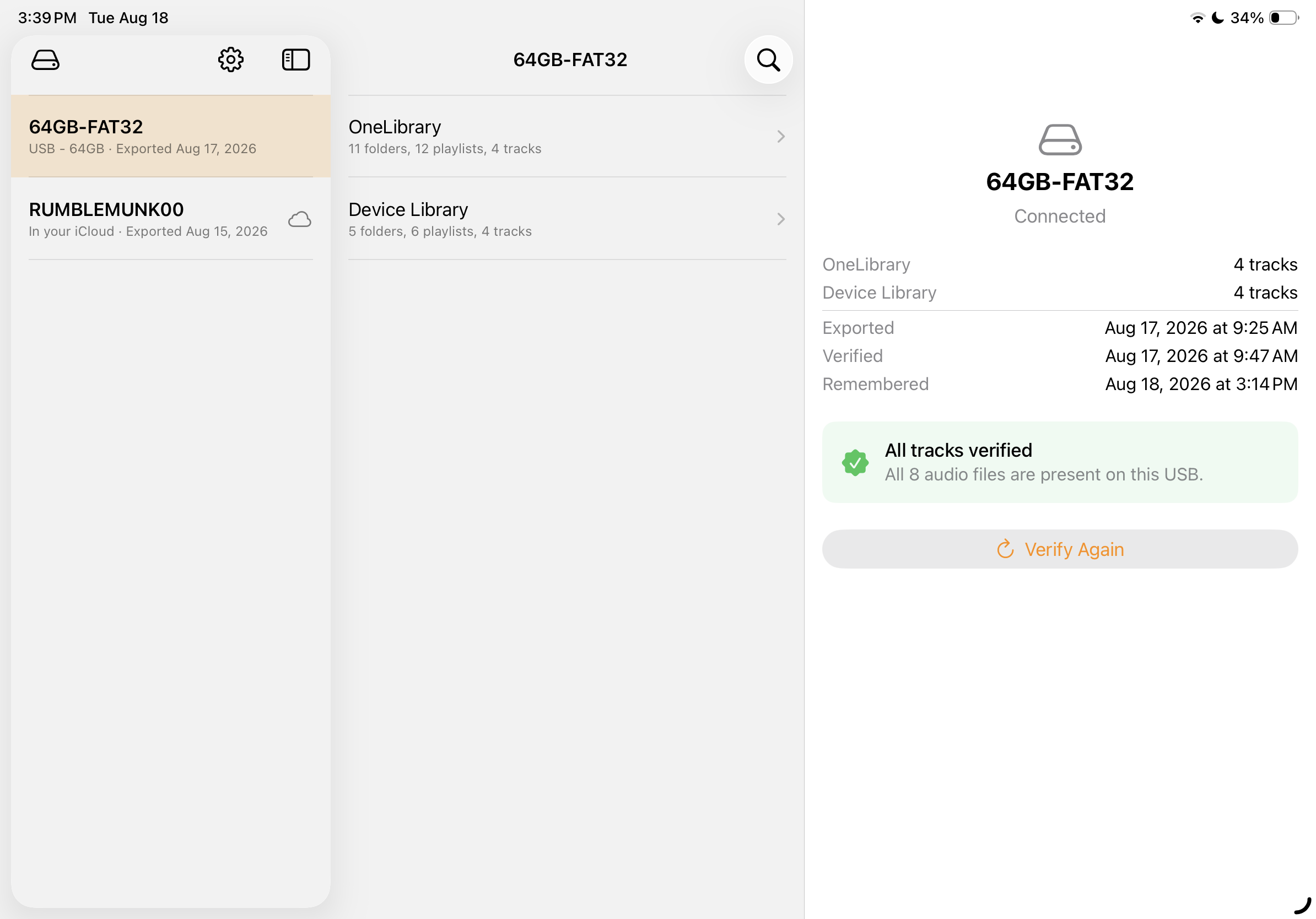
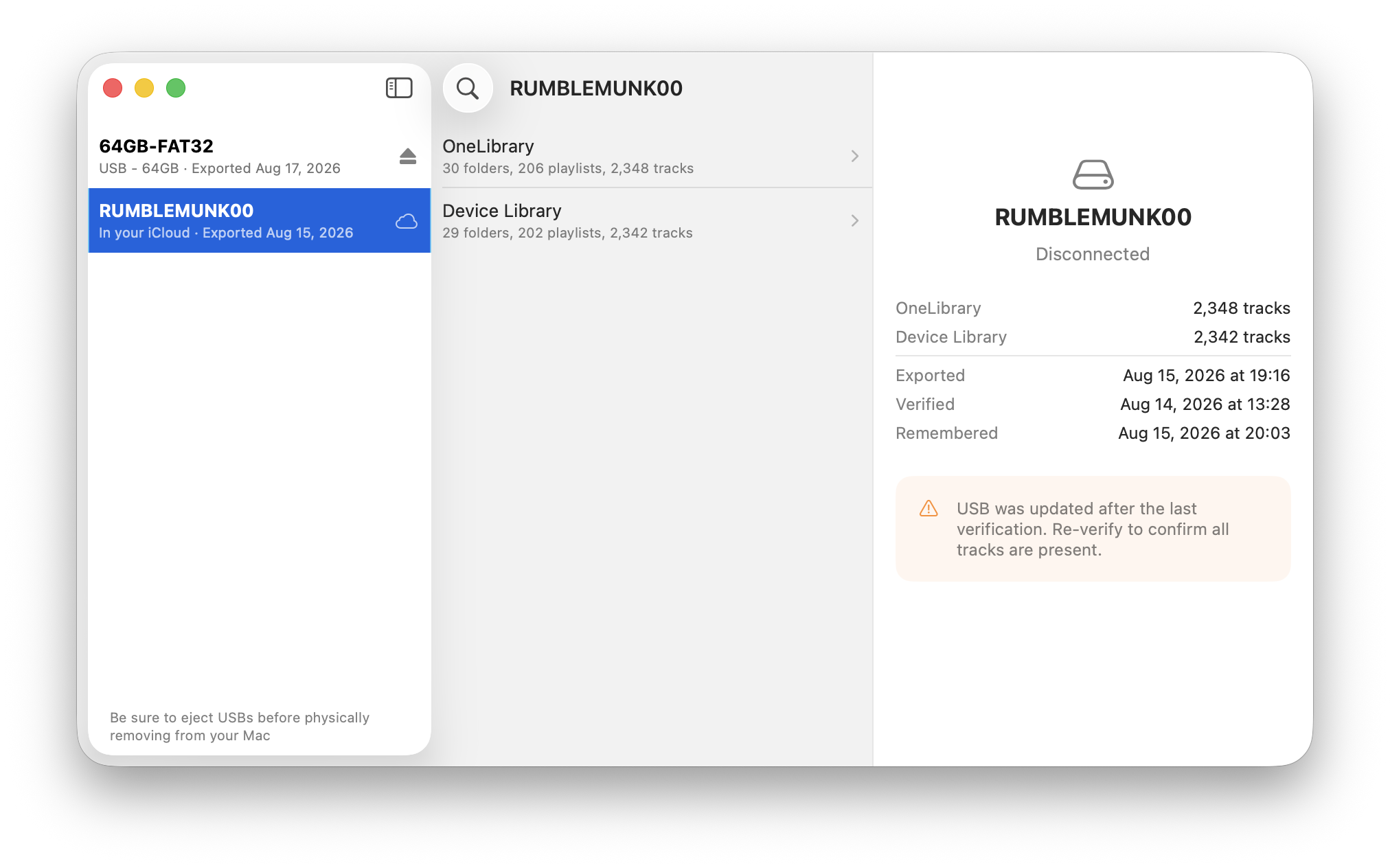
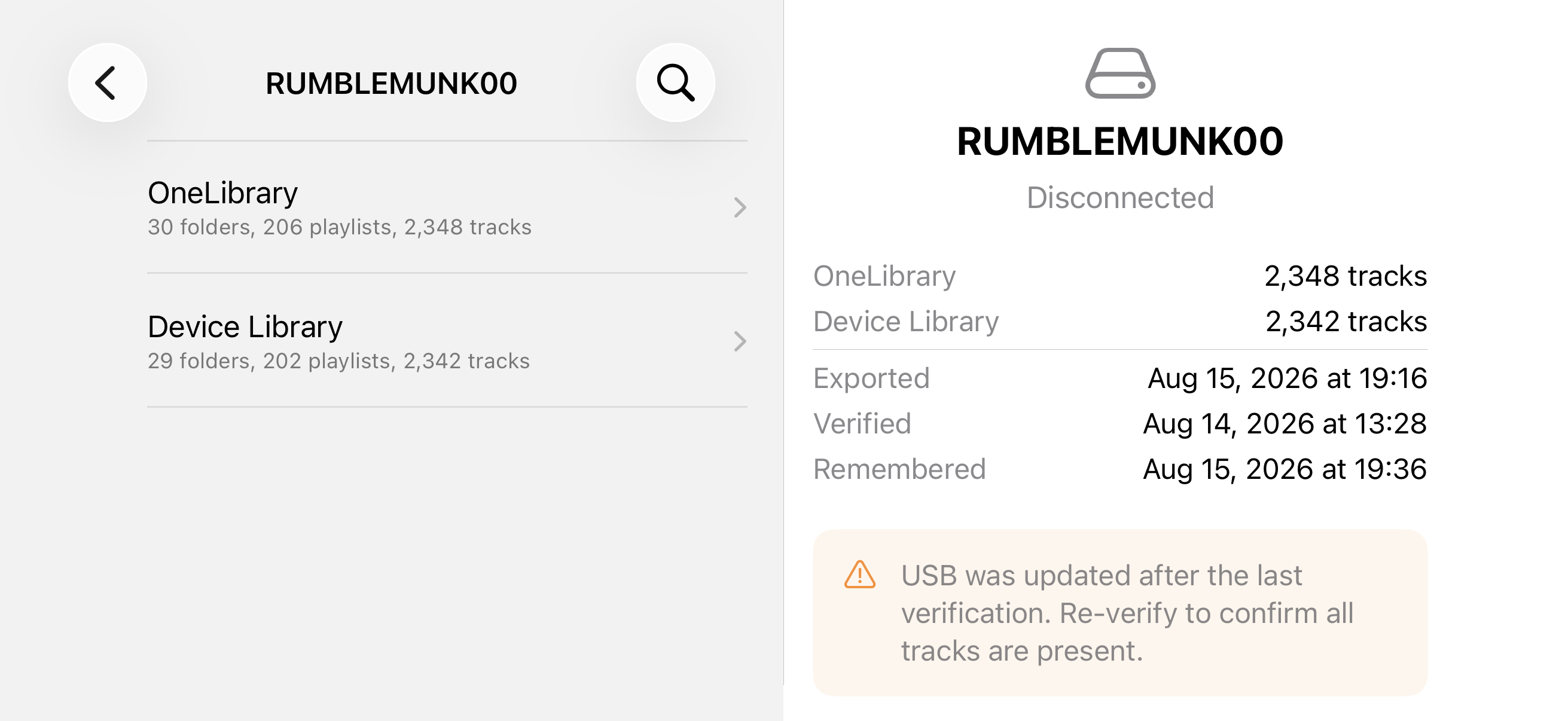
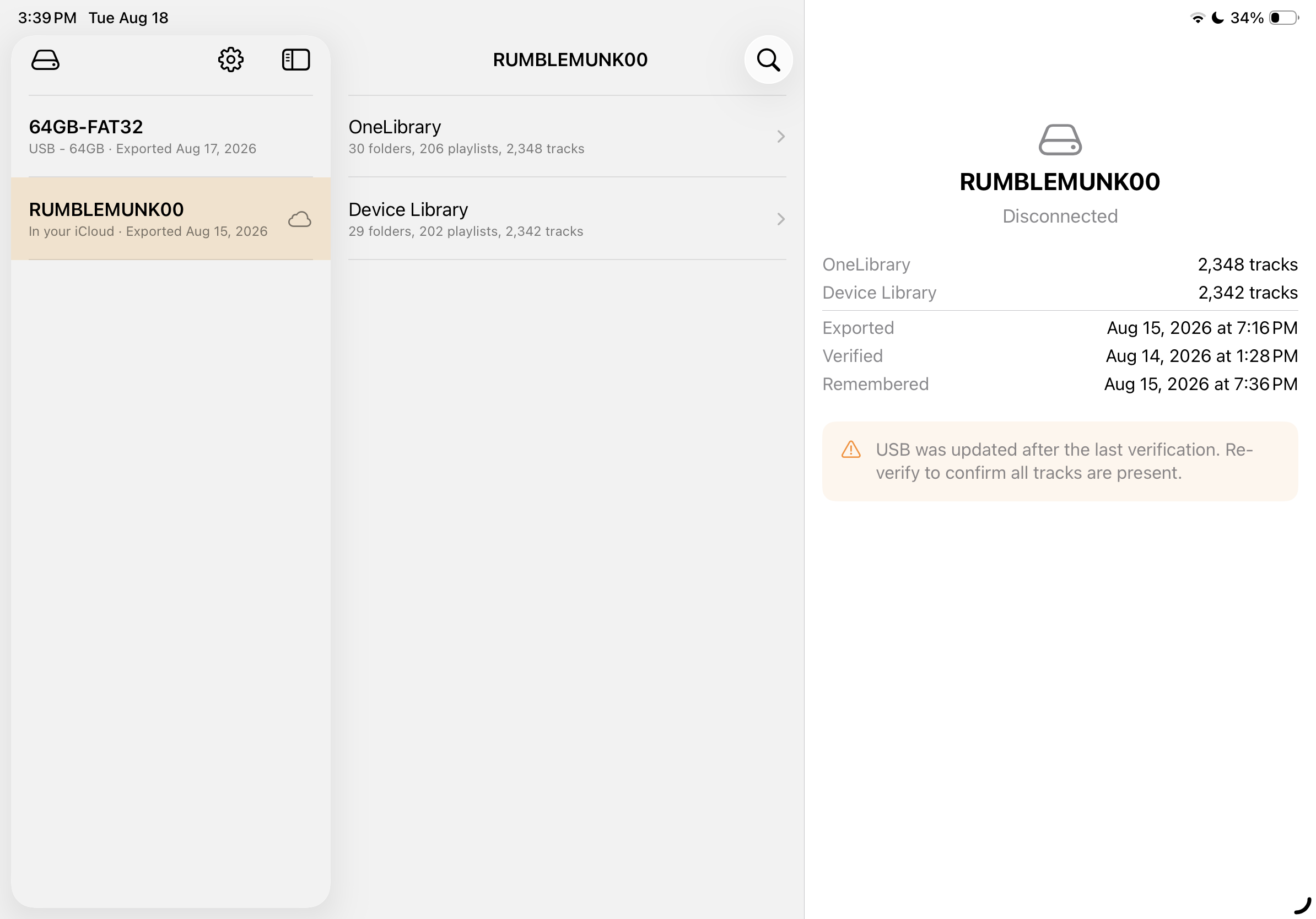
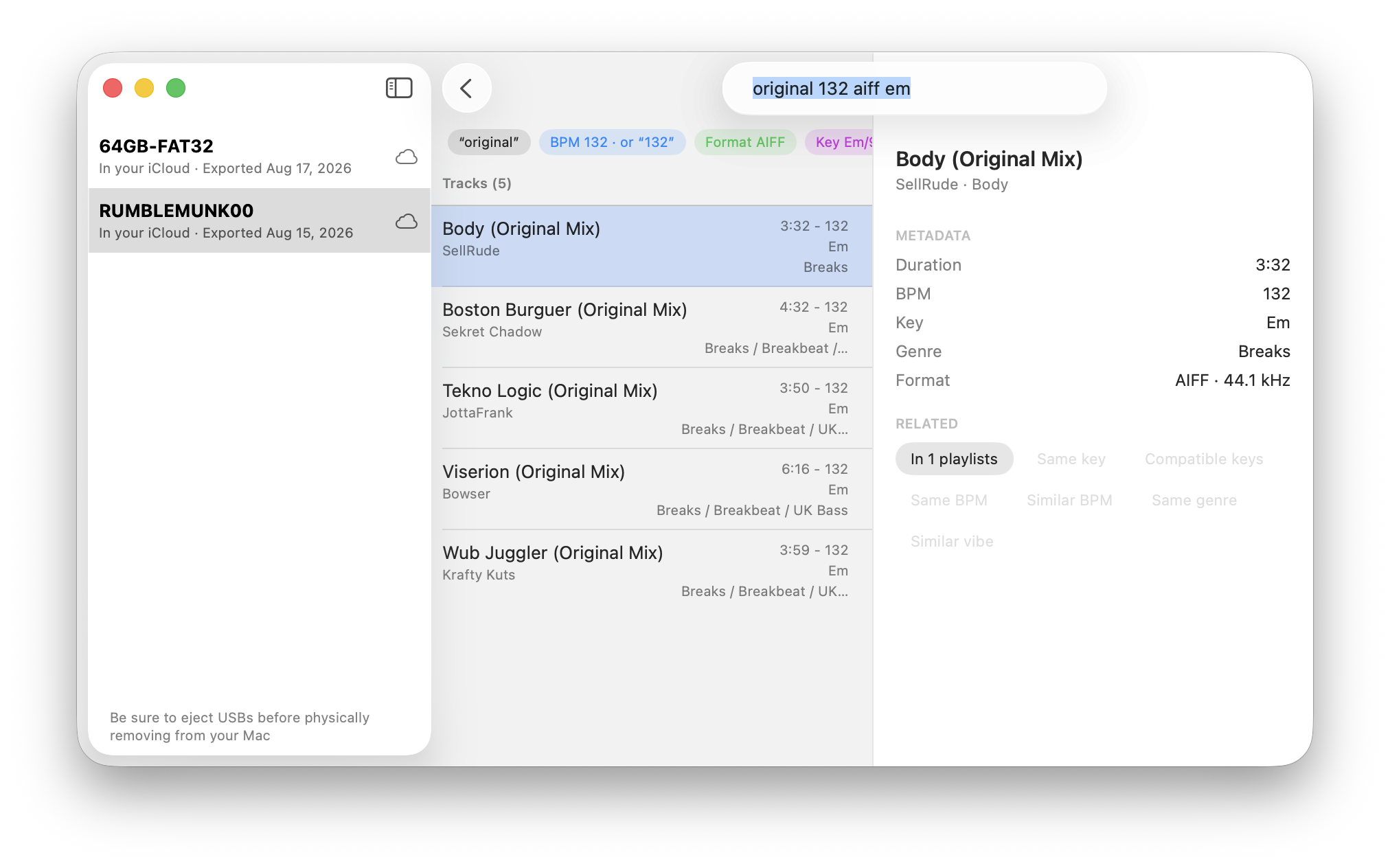
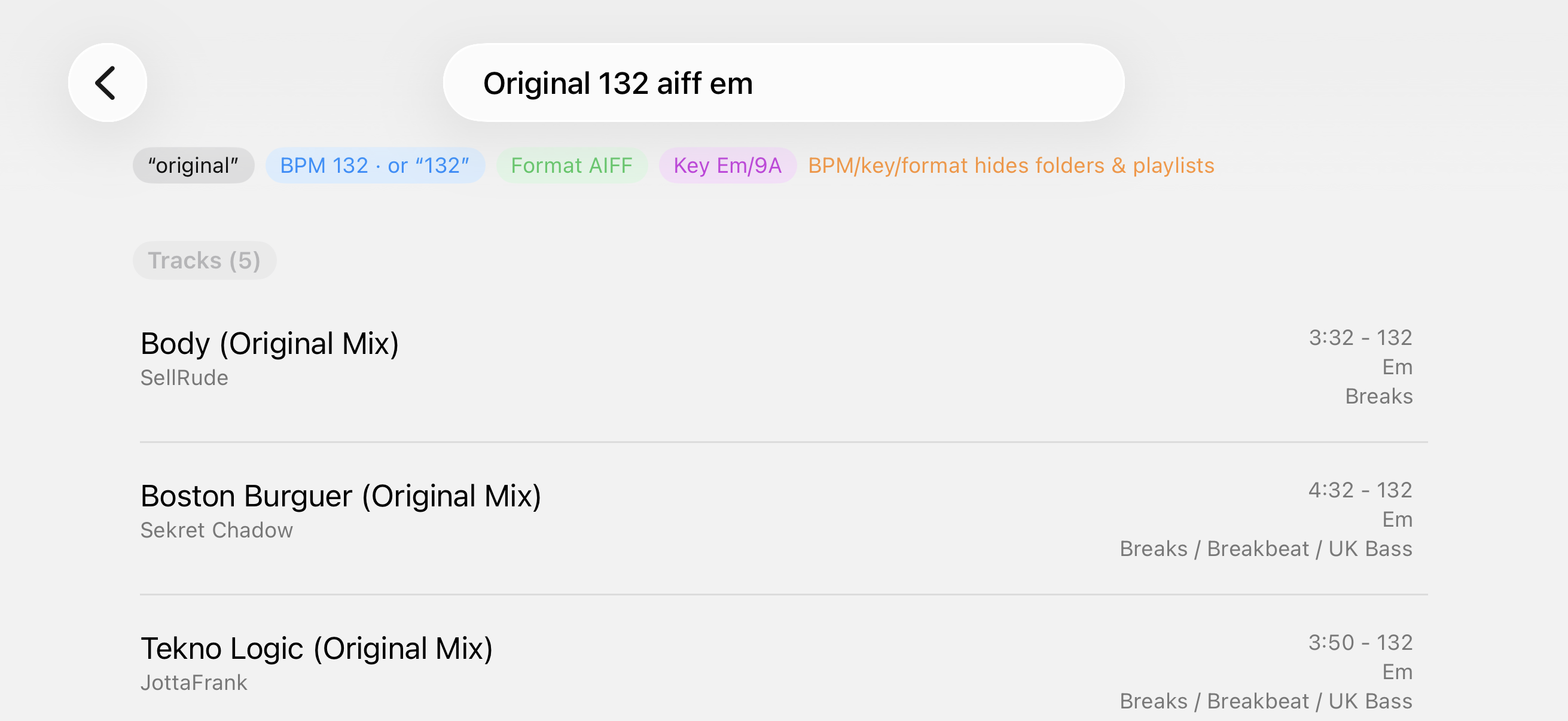
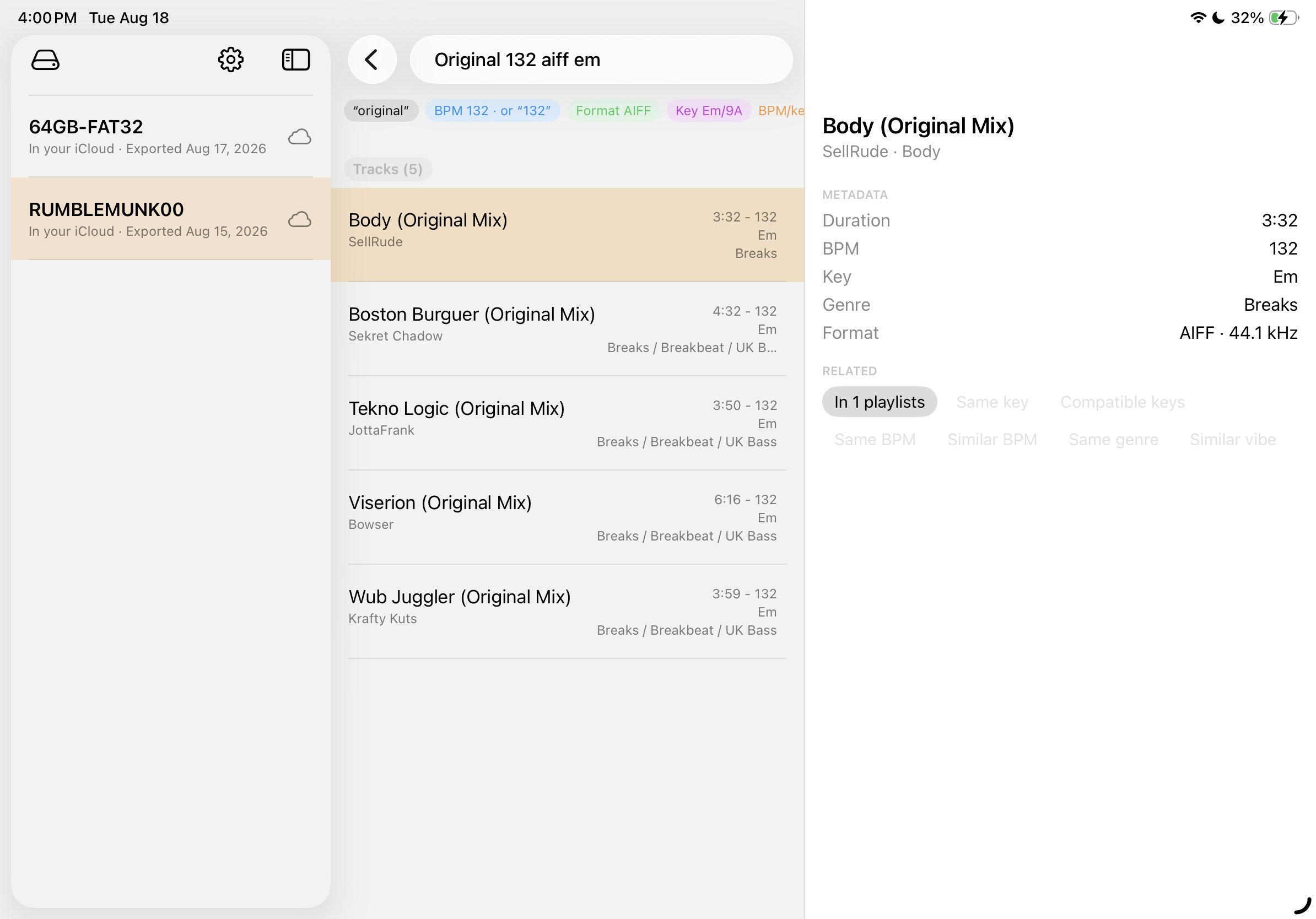
Plug in the stick rekordbox exported to, and ToBeSorted2 reads the library straight off it — Device Library, OneLibrary, every folder and playlist — right there on your phone. Just the track list, playlist structure, and metadata — no artwork, nothing copied over. Preview a track and it plays straight off the stick. The music stays on the drive where it belongs.
Add your first USB
iOS
- 01Connect the drivePlug your USB into your iPhone or iPad.
- 02Tap the drive iconTop-left of the volumes list.
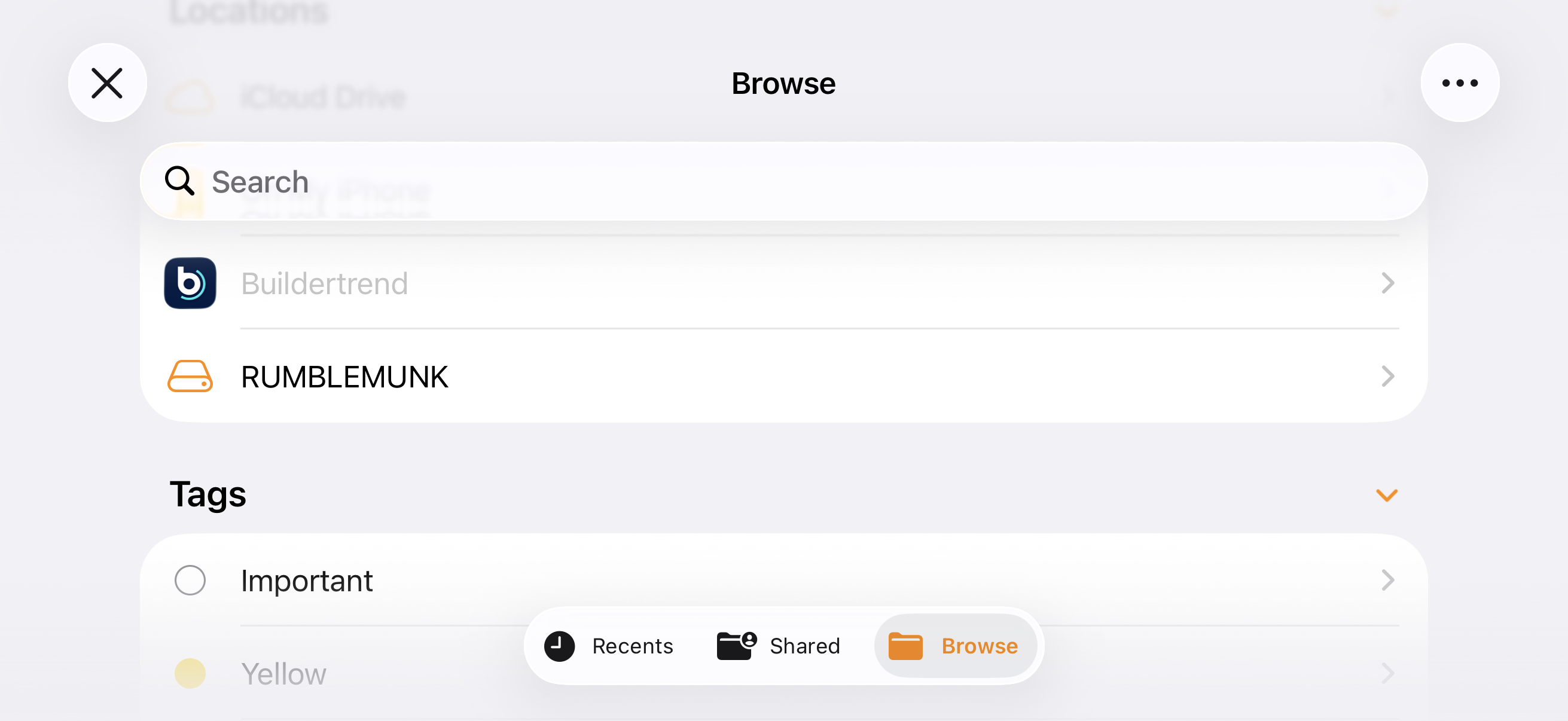
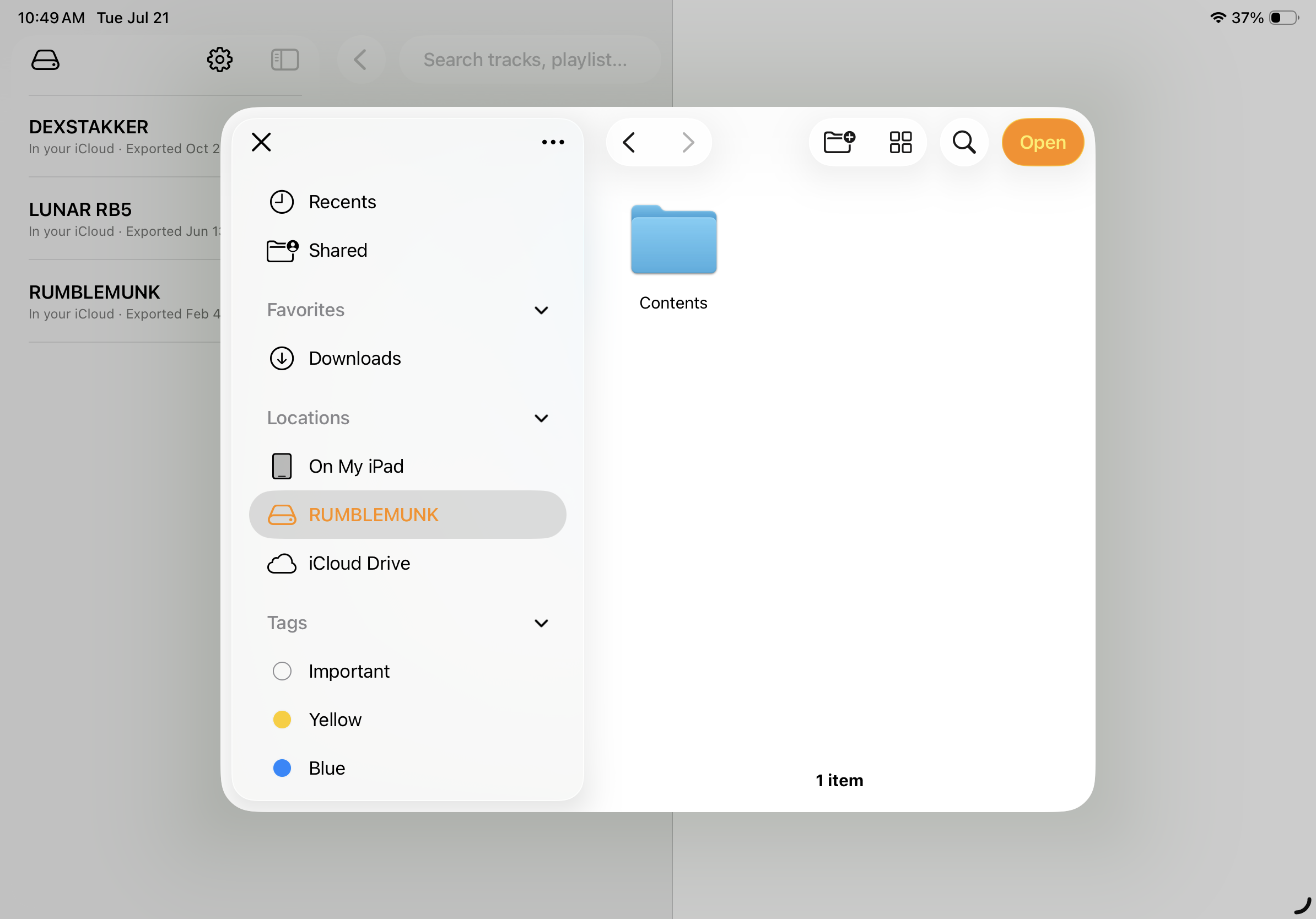
- 03Choose the USBFind it under Locations in the picker, then tap Open — iOS remembers it after this.
- 04Browse or searchTap in for the libraries, or hit search.
macOS
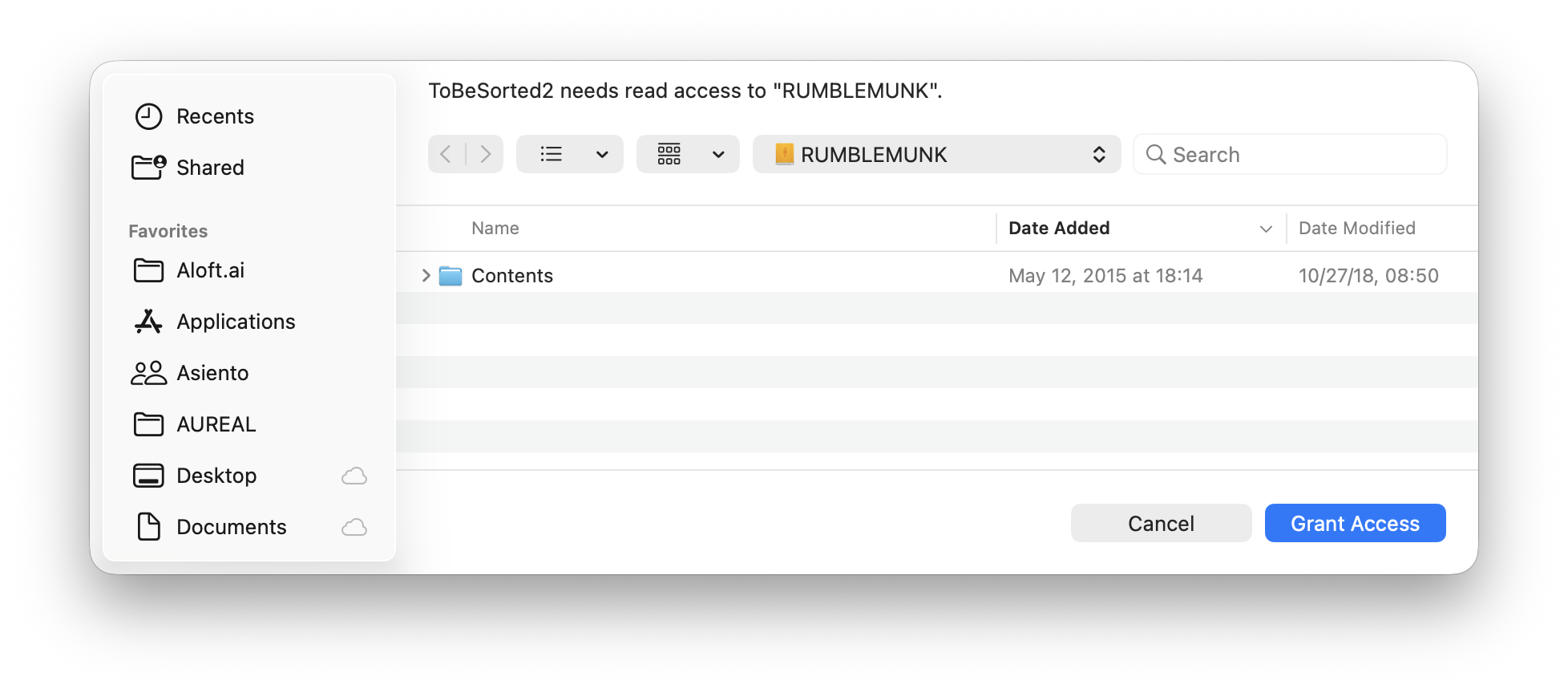
- 01Connect the drivePlug your USB into your Mac.
- 02Grant accessA system panel appears automatically — click Grant Access.
- 03There's no step 3.macOS already remembered the drive — no repeat prompts.
- 04Browse or searchSelect it in the sidebar, or hit search.
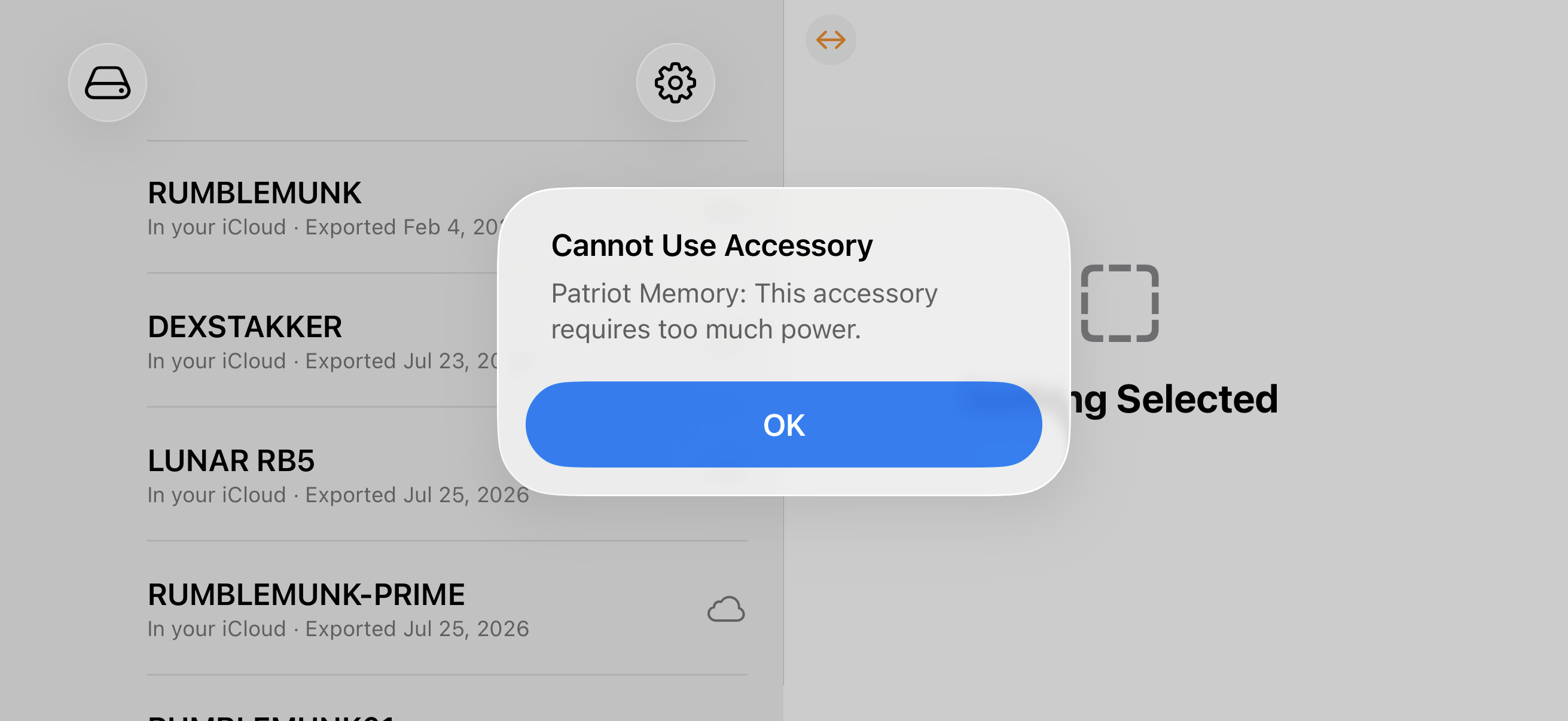
“This accessory requires too much power”
Some combinations of stick and hub ask for more power than an iPhone's port will hand out. iOS turns the drive away itself, with this alert, so it never reaches ToBeSorted2 — or any other app. It is an iPhone thing: Macs and iPads have more to give and don't run into it.
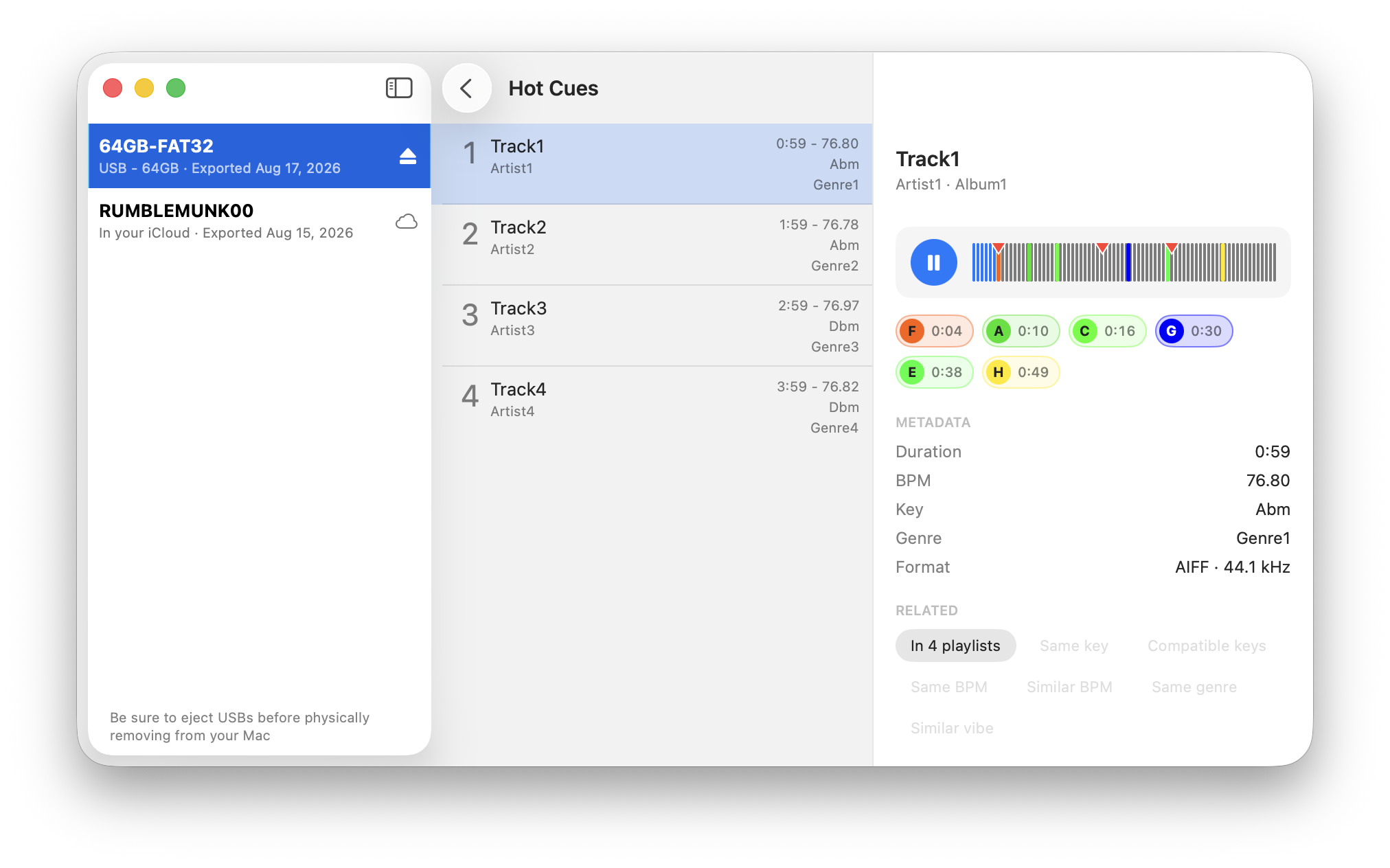
Preview a track
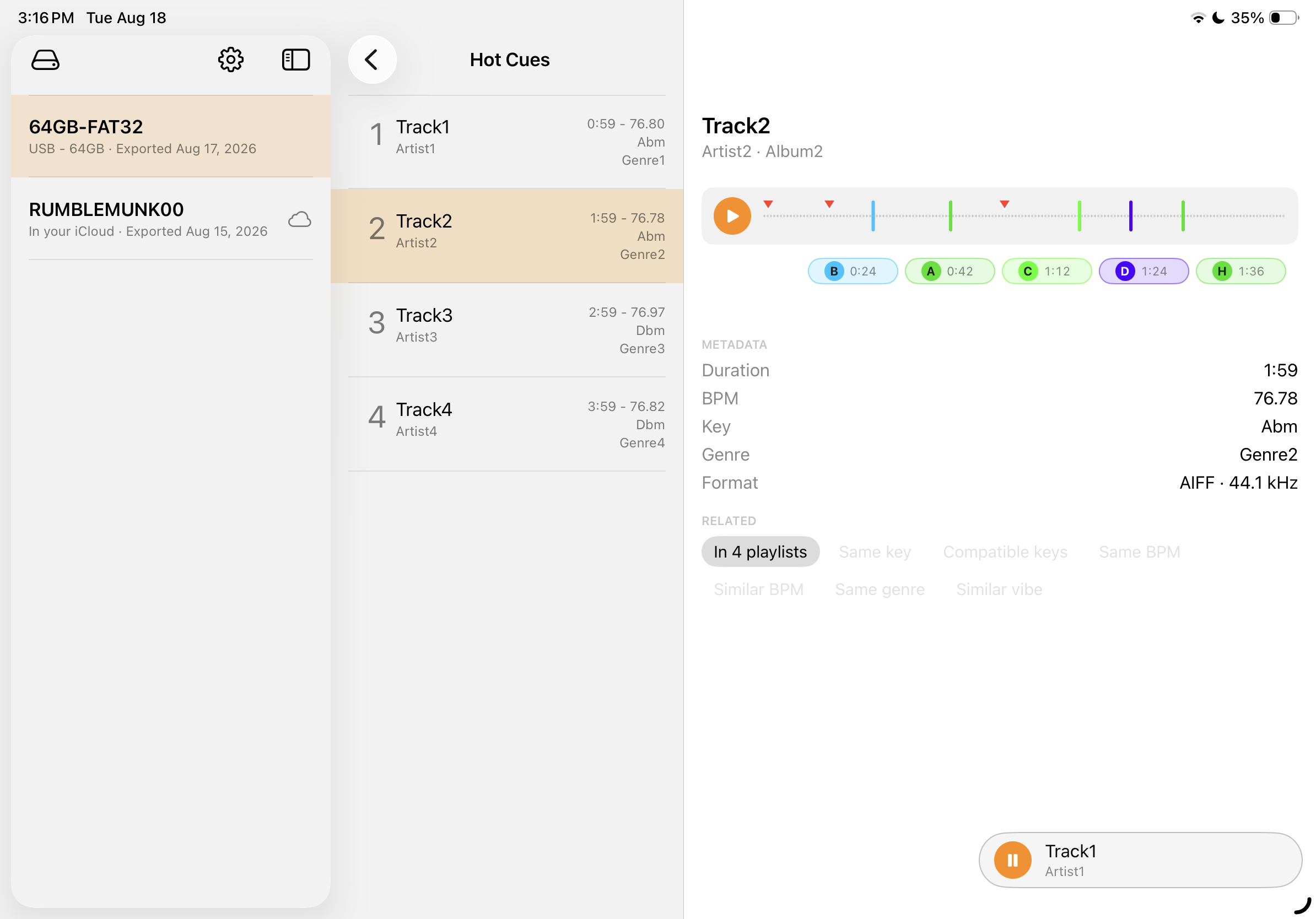
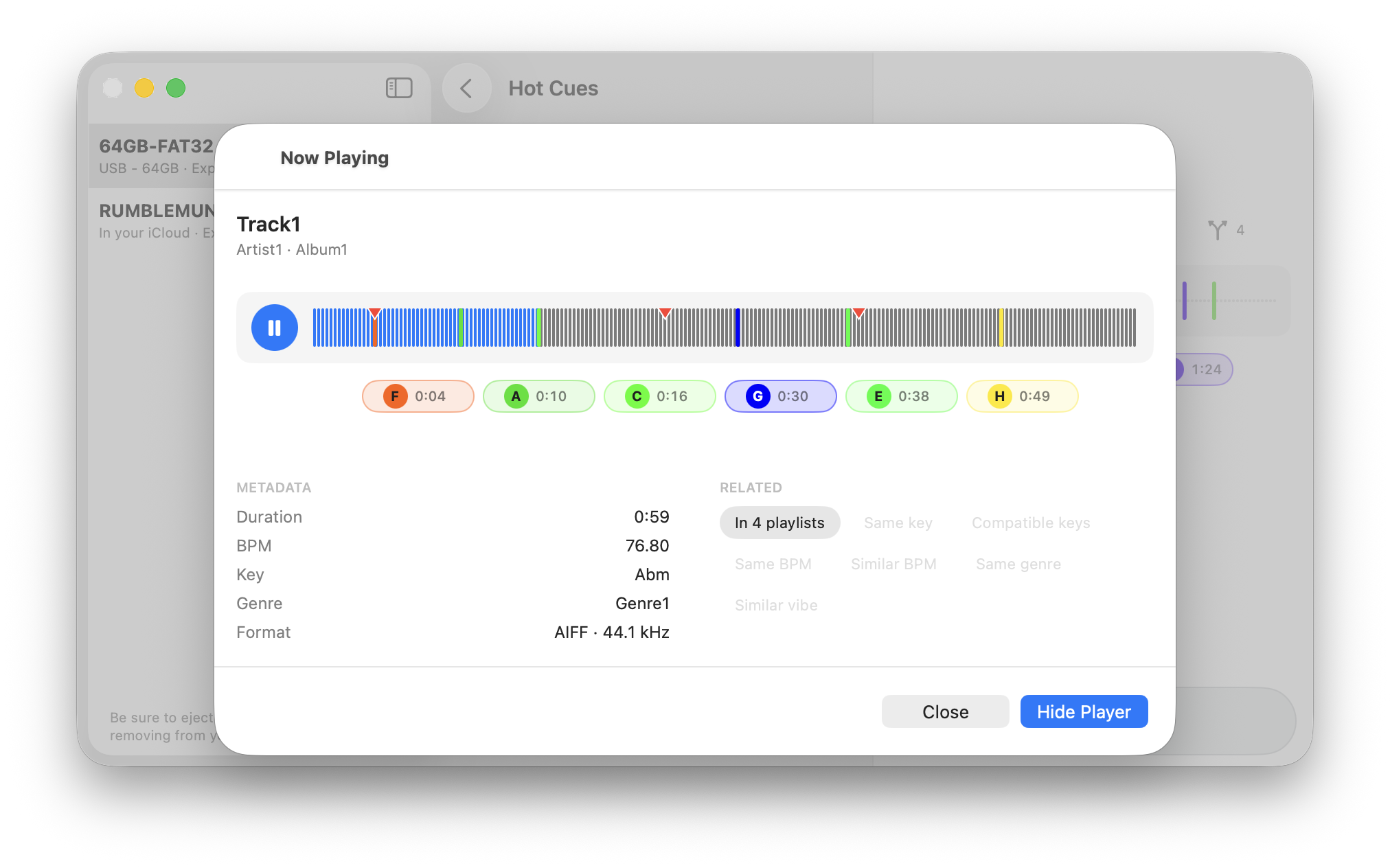
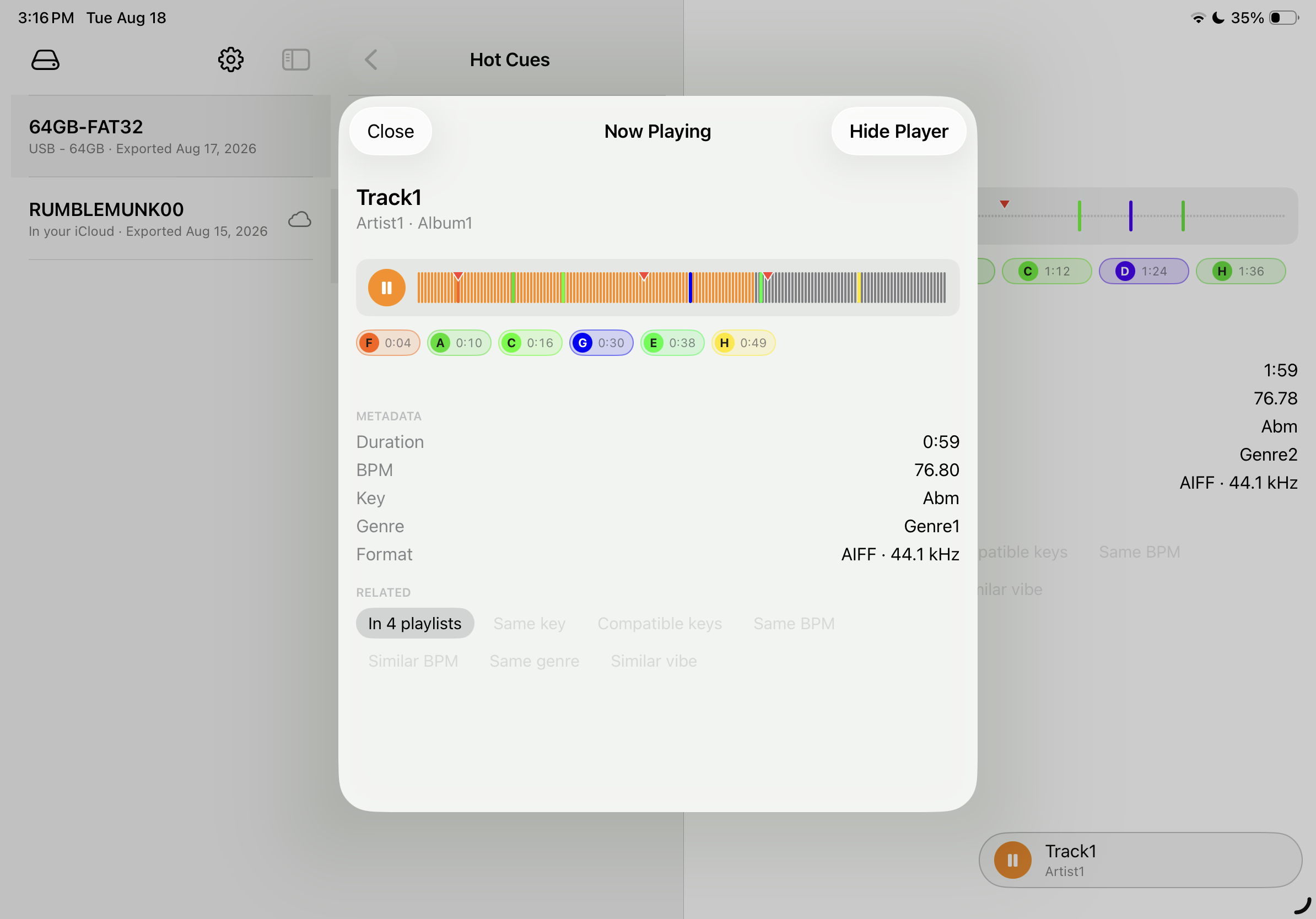
Hit play on any track and it starts — read off the drive as it plays, and gone again when you're done. Nothing is written to your phone. It's a preview, not a deck: enough to settle which track this actually is when the title on its own isn't ringing a bell.
What's in a name?
Before rekordbox, there was iTunes — and a habit of stuffing metadata into the Comments field on every track: female, vocals, whatever would help it surface later. The original ToBeSorted scraped one playlist folder and turned every BPM and comment keyword it found into a button. Tap a few, see what's left. It sold a handful of copies, then a day job got busier than a side project could compete with, and it quietly bit-rotted out of the App Store.
The name comes from that one folder it scraped — never the whole library, that would take all night — called, literally, "ToBeSorted": tracks still waiting to be sorted. The app just borrowed the name off the folder it was built to search.
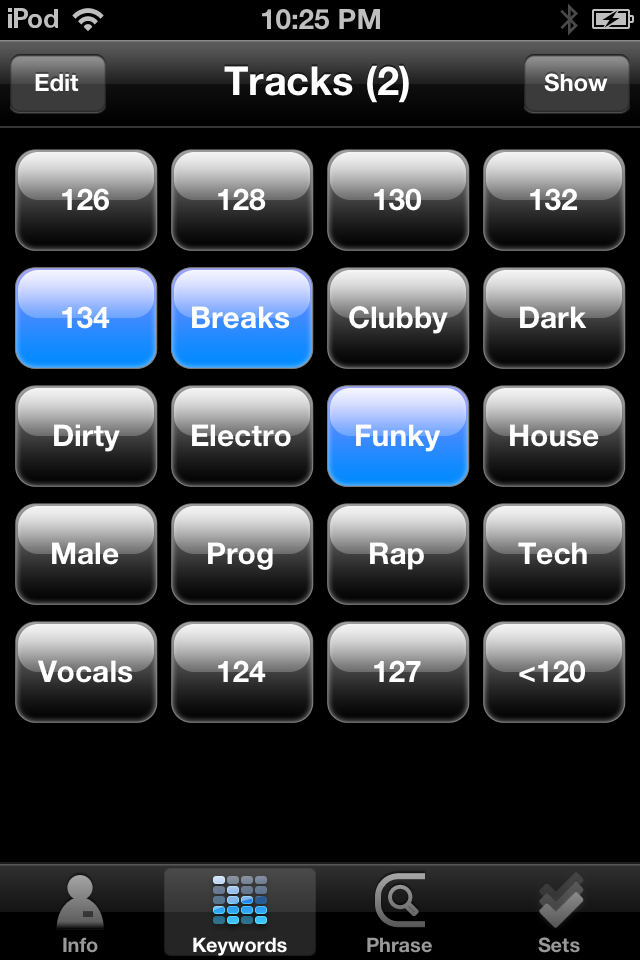
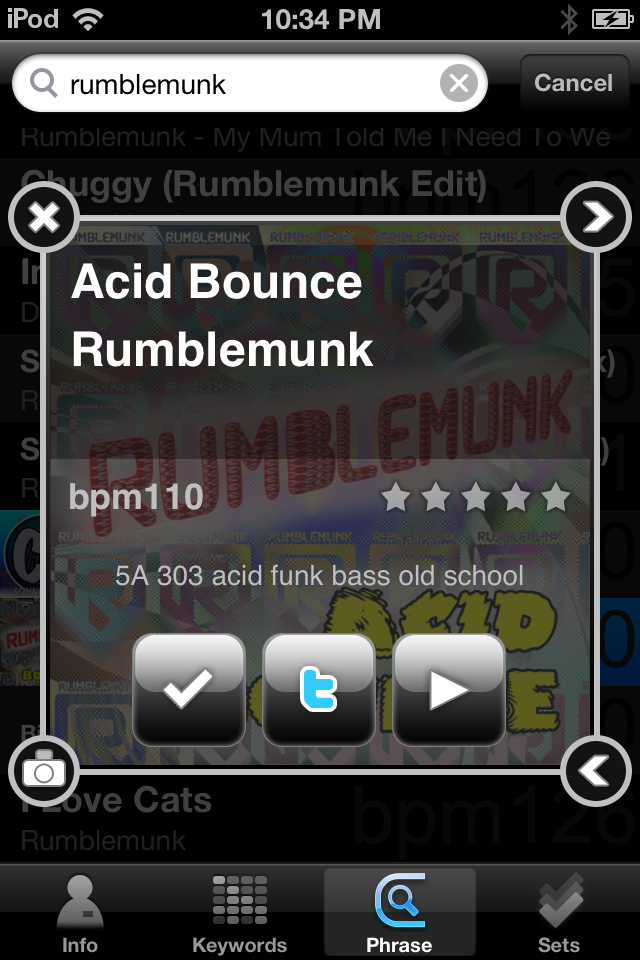
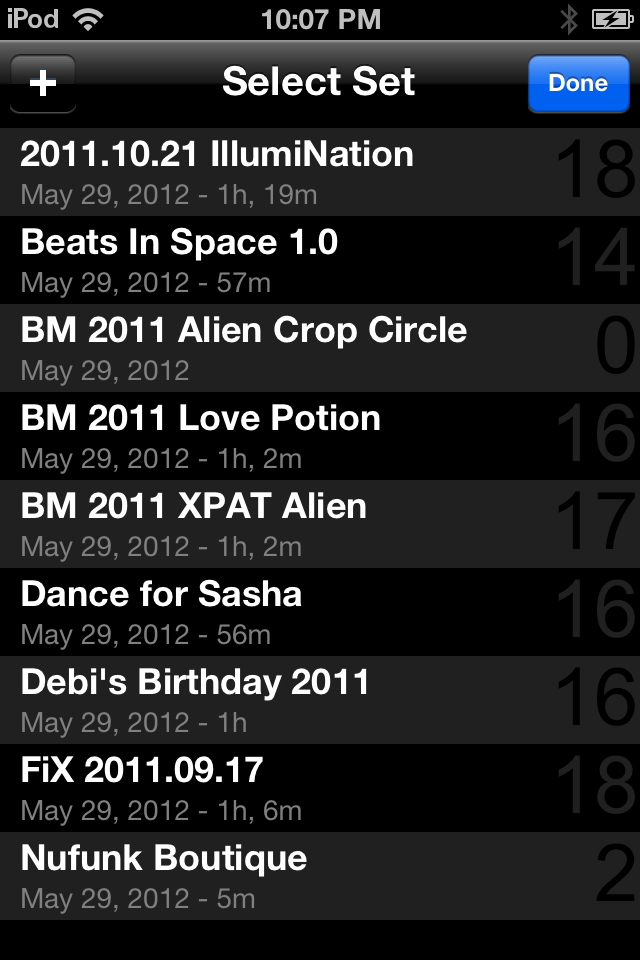
ToBeSorted, circa 2013 — tap a BPM, tap a keyword, see what's left.
Release history
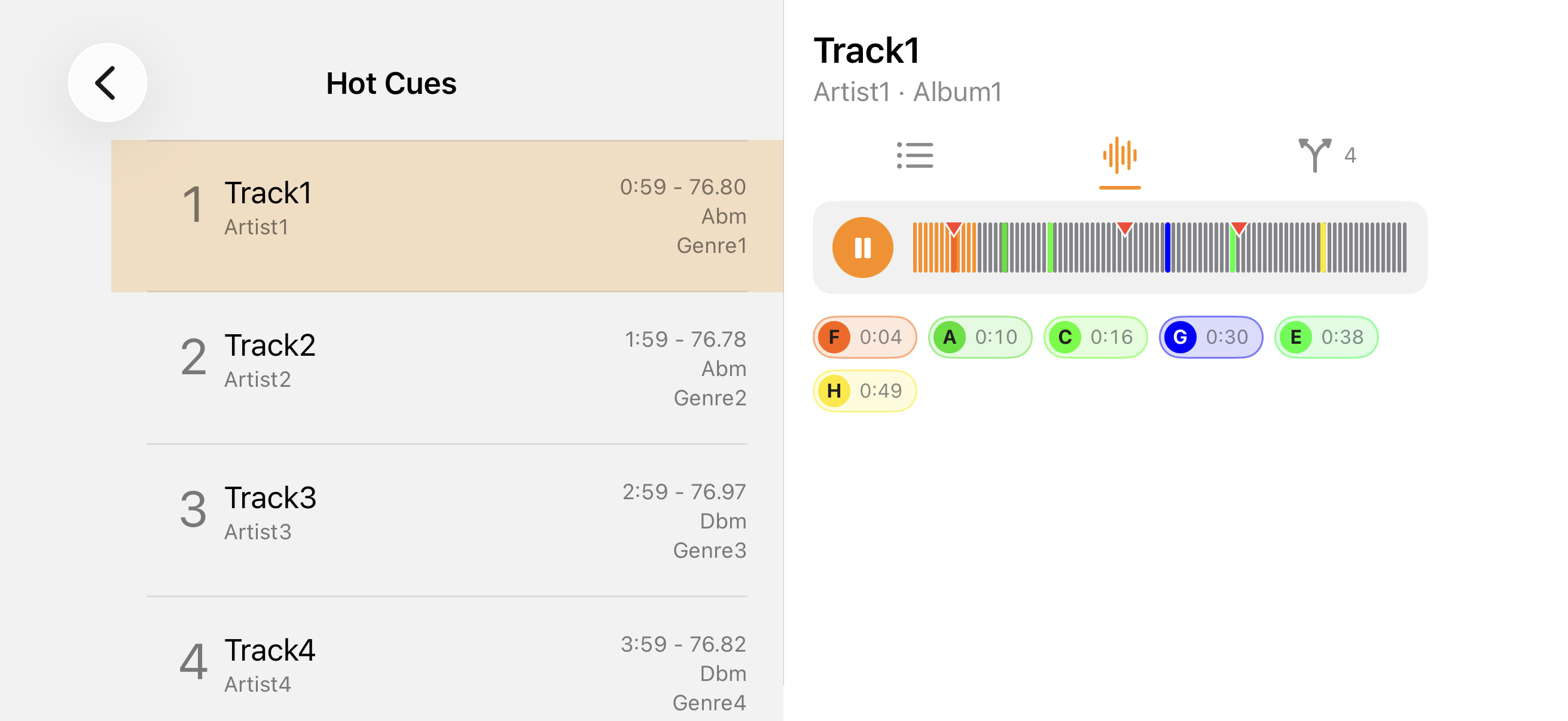
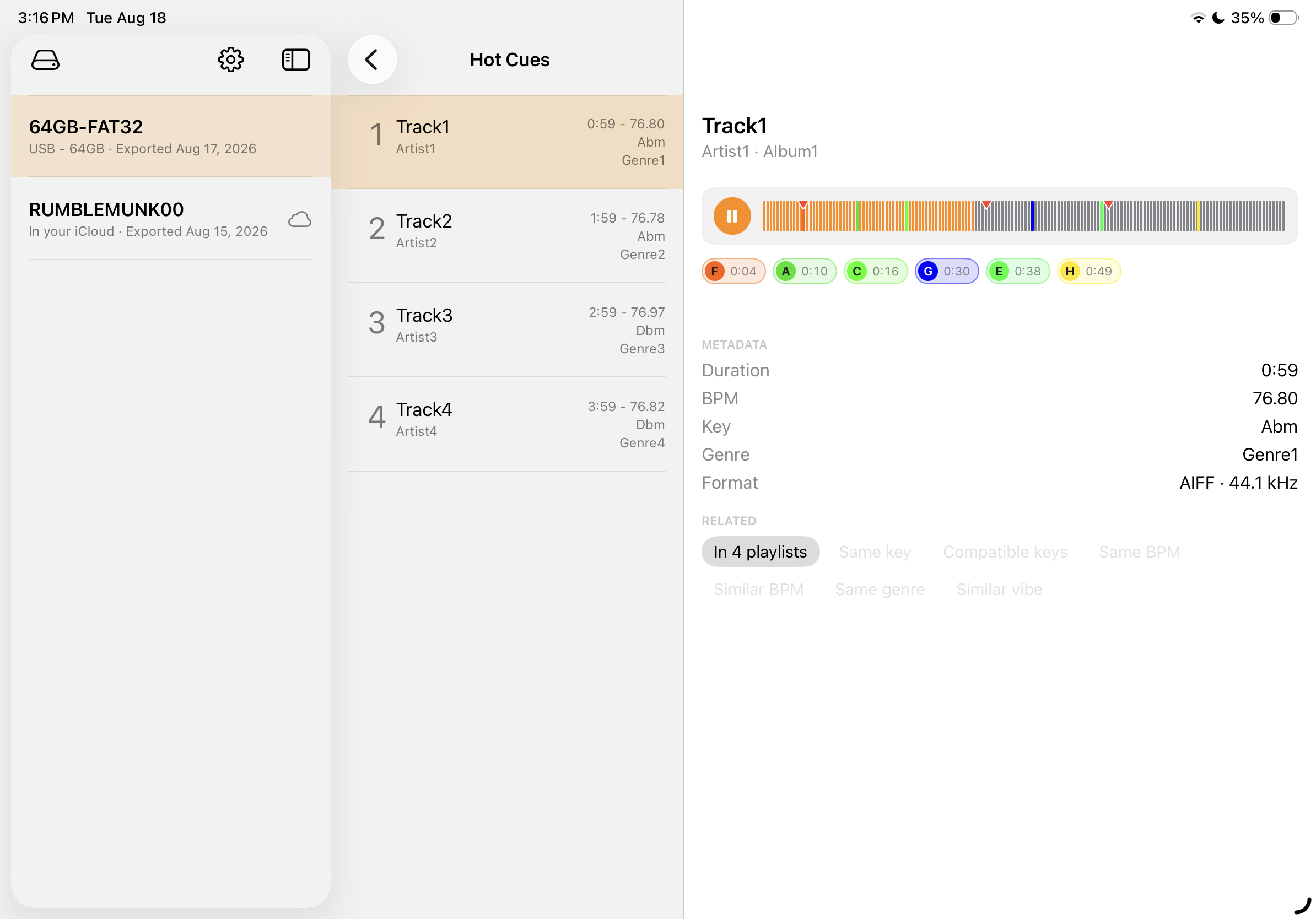
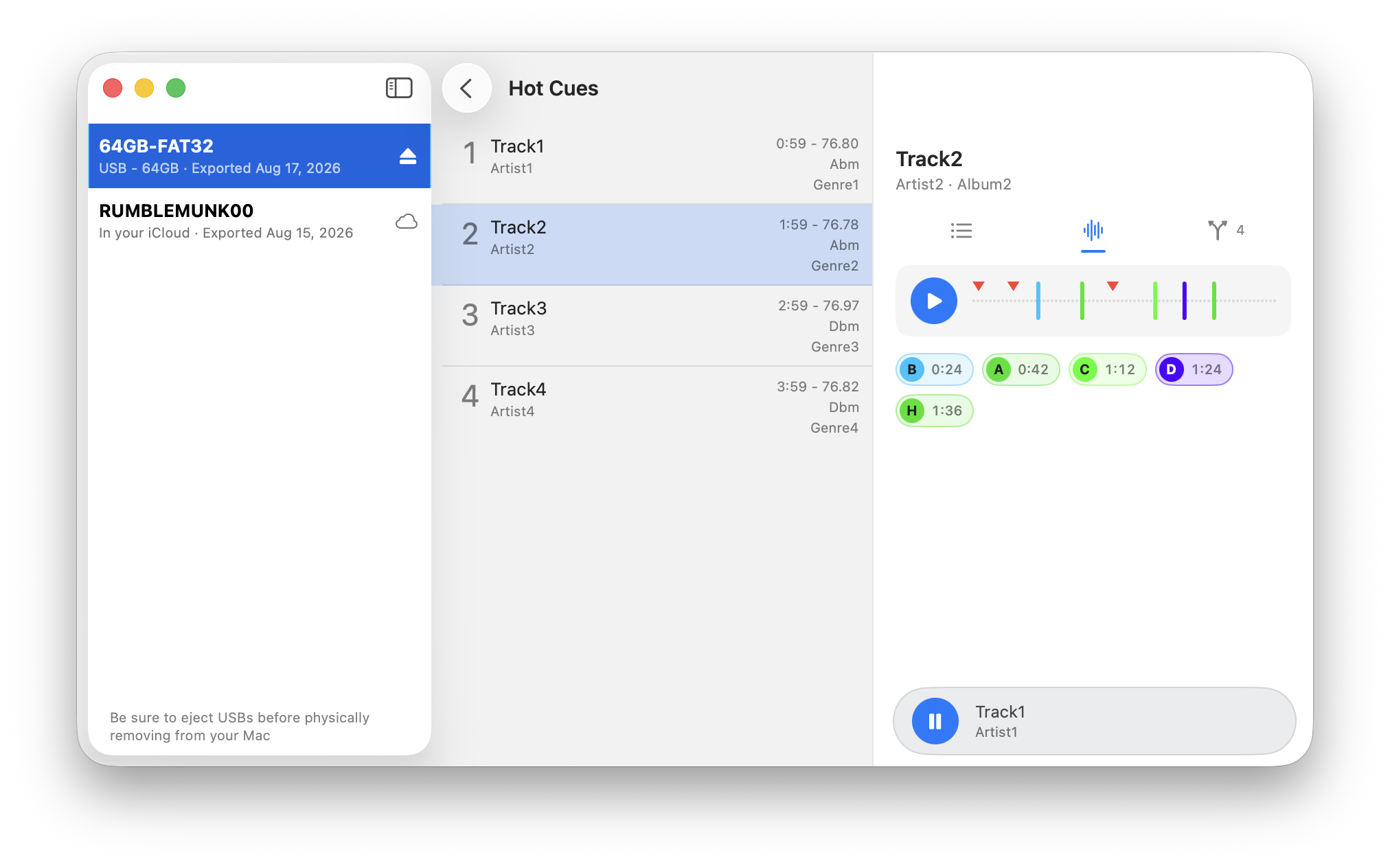
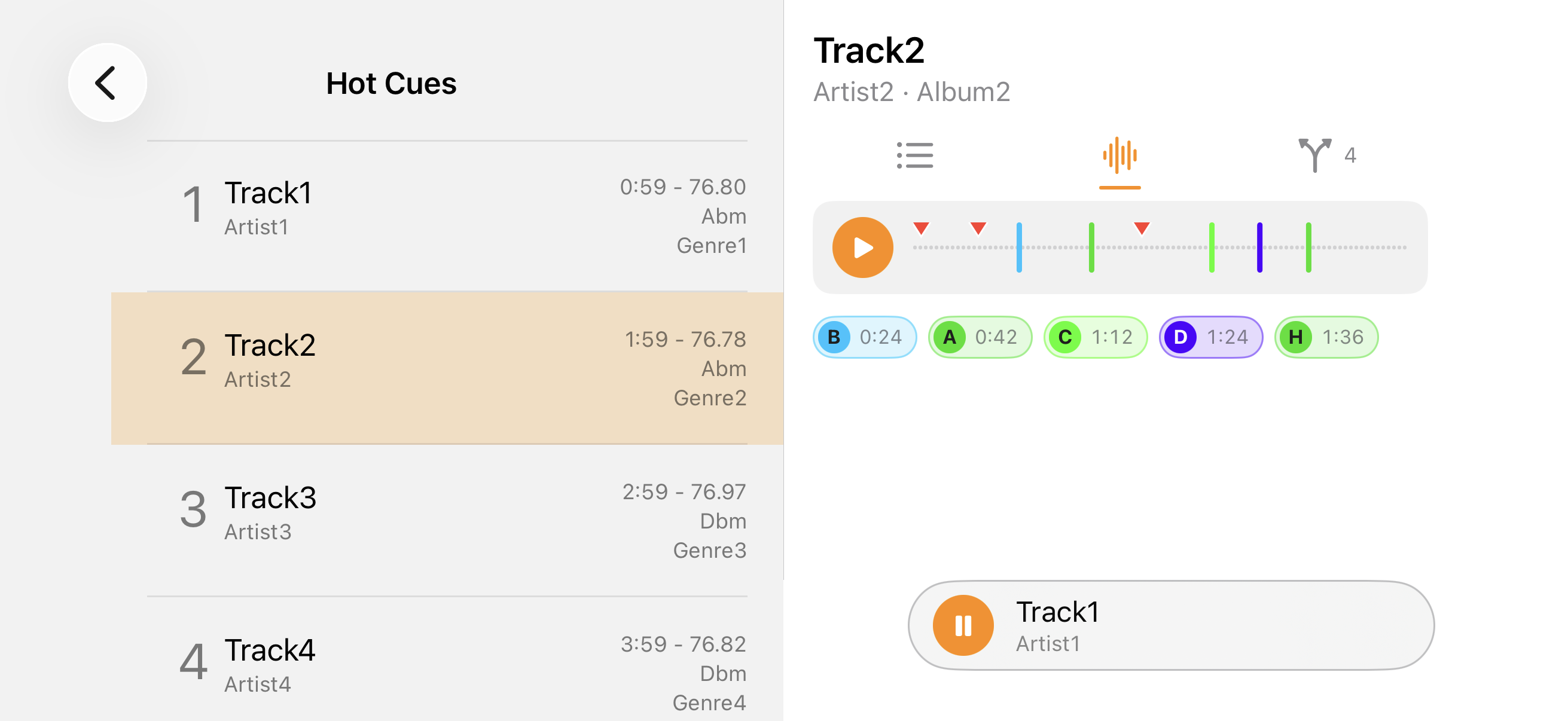
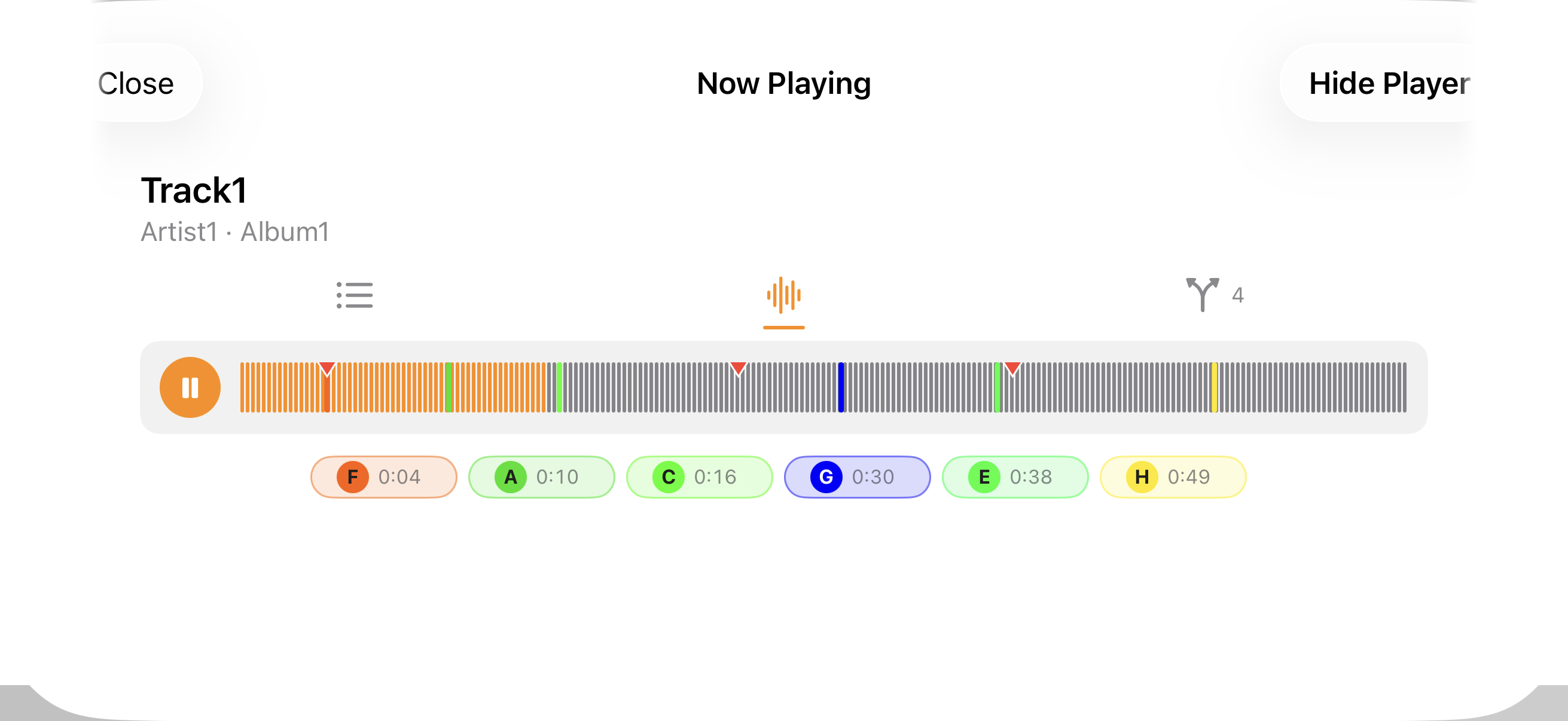
- See a track's cue points — hot cues and memory cues both, in rekordbox's colours, drawn down the waveform; tap one to start the track there.
- Cues come off the drive's own analysis files, so they match what a CDJ reads from the same USB.
- A track's detail is now a fixed title over three pages — Metadata, Playback, Related — and names the track's format and sample rate, which you can search by too: AIFF, WAV, MP3, MP4.
- A track that can't be played now says why — its file is missing, the drive's access has expired, or it's a format we don't play.
- Preview any track straight off the drive — play, pause, and tap the waveform to move the playhead.
- Waveforms drawn from the track's own audio, so you can see its shape before you cue it.
- A small player at the bottom edge keeps the track going while you carry on browsing.
- Plays MP3, AAC, ALAC, WAV, and AIFF.
- Playlist tracks are numbered.
- On iPhone and iPad in portrait, a track's detail floats over the list instead of squeezing it.
- Fixed a macOS issue where the window title bar showed the app's name instead of staying blank.
- Browse rekordbox USBs across iPhone, iPad, and Mac.
- Search by track, artist, genre, BPM, and musical/Camelot key.
- Verify a playlist's tracks still have audio files on the drive.
- Libraries remembered and synced privately across your devices via iCloud.