ToBeSorted2 app icon +
TestFlight Version

ToBeSorted2

Built for DJs. Built by DJs.

Add your first USB

iOS

  1. 01
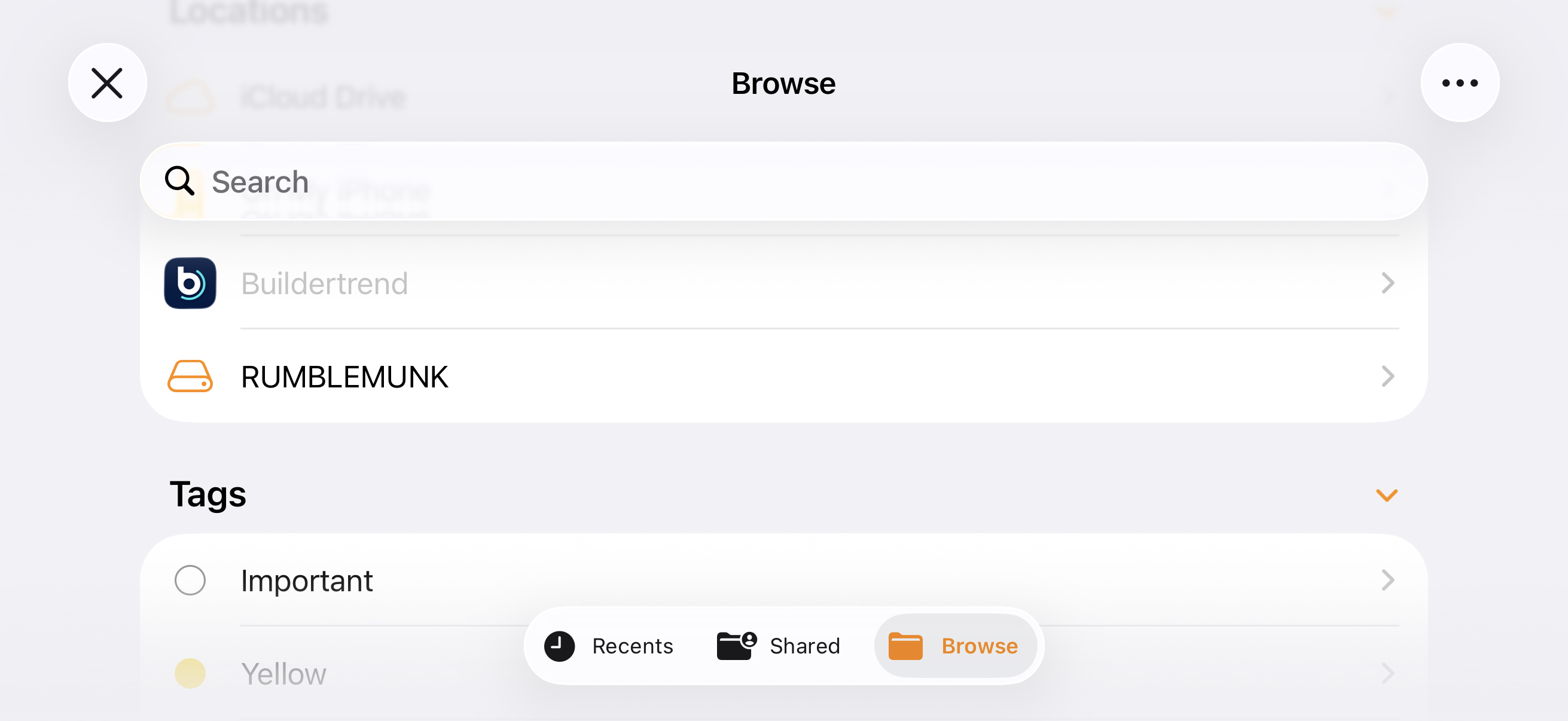
    Connect the drivePlug your USB into your iPhone or iPad.
  2. 02
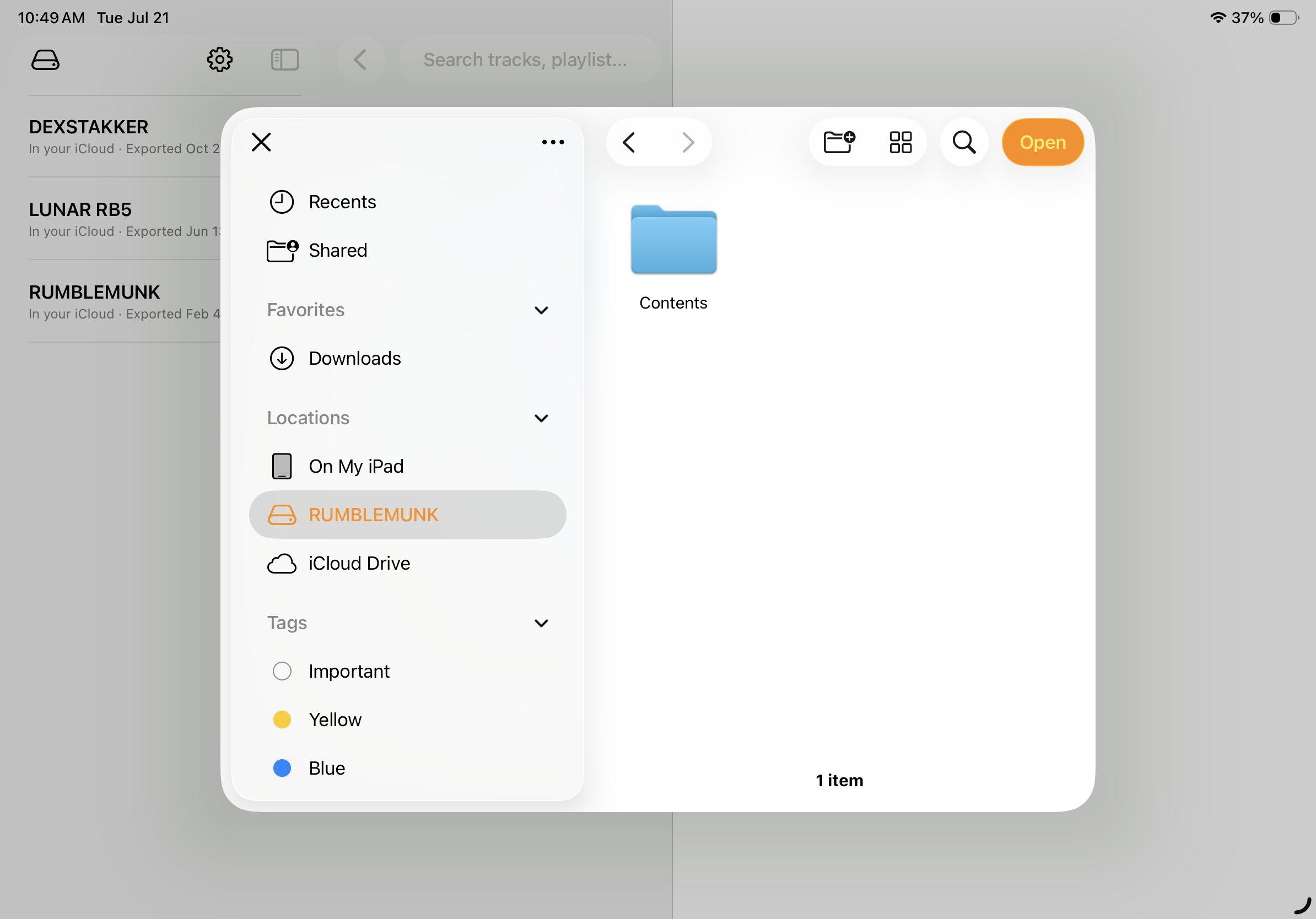
    Tap the drive iconTop-left of the volumes list.
  3. 03
    Choose the USBFind it under Locations in the picker, then tap Open — iOS remembers it after this.
  4. 04
    Browse or searchTap in for the libraries, or hit search.

macOS

  1. 01
    Connect the drivePlug your USB into your Mac.
  2. 02
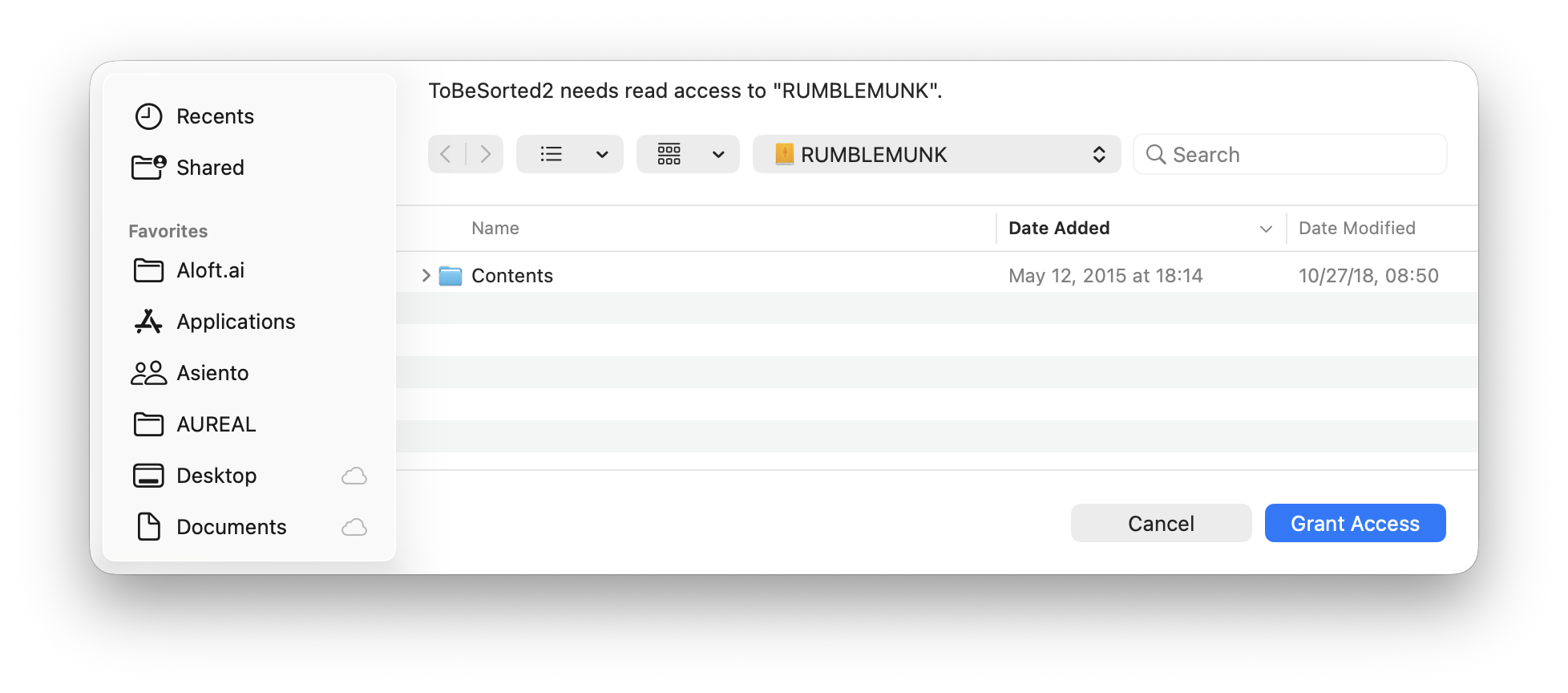
    Grant accessA system panel appears automatically — click Grant Access.
  3. 03
    There's no step 3.macOS already remembered the drive — no repeat prompts.
  4. 04
    Browse or searchSelect it in the sidebar, or hit search.
On Mac, eject with ToBeSorted2's eject button before unplugging. On iPhone and iPad, you can just pull the drive out.

“This accessory requires too much power”

Some combinations of stick and hub ask for more power than an iPhone's port will hand out. iOS turns the drive away itself, with this alert, so it never reaches ToBeSorted2 — or any other app. It is an iPhone thing: Macs and iPads have more to give and don't run into it.
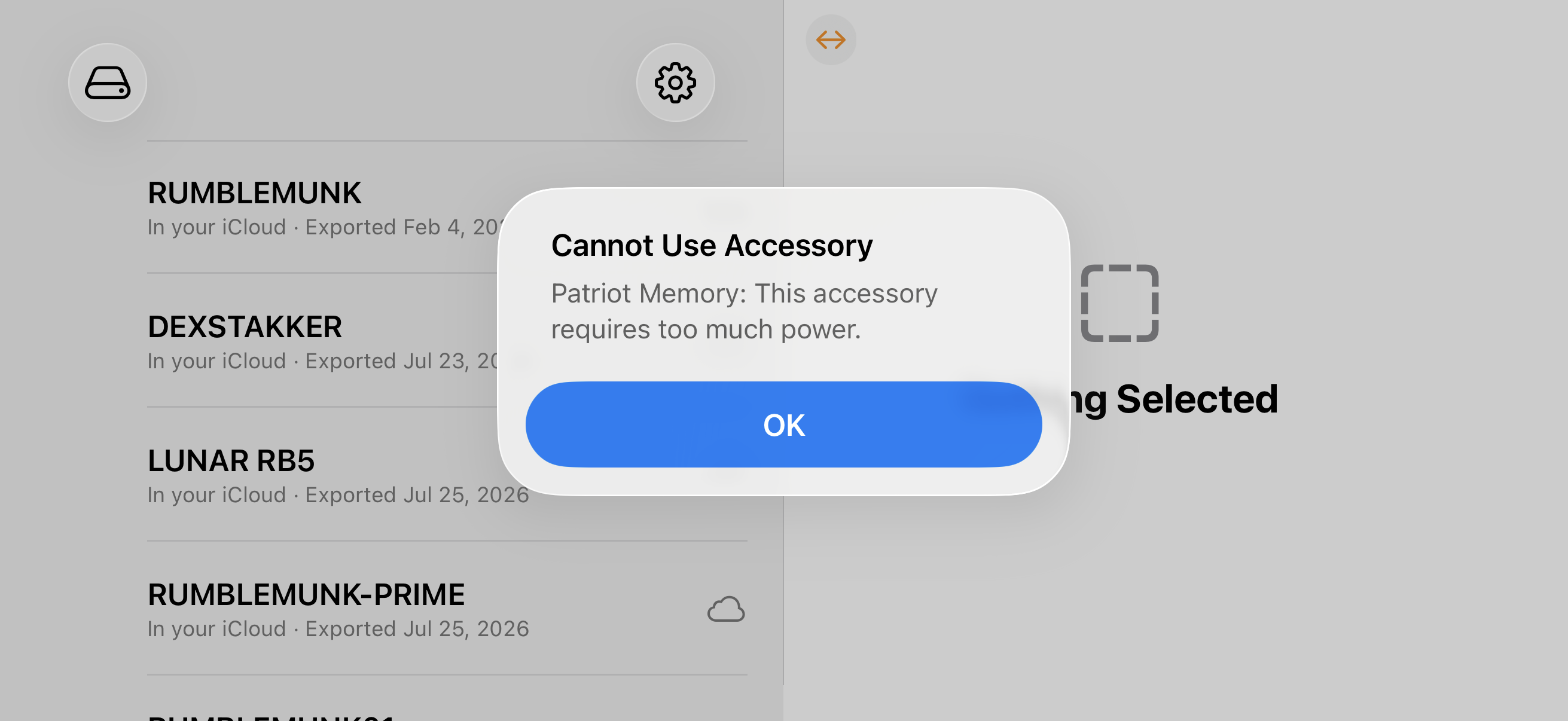
What works: drop the hub. A plain USB-A to USB-C adapter puts the stick straight on the port, with nothing else drawing from it.

Verify a playlist

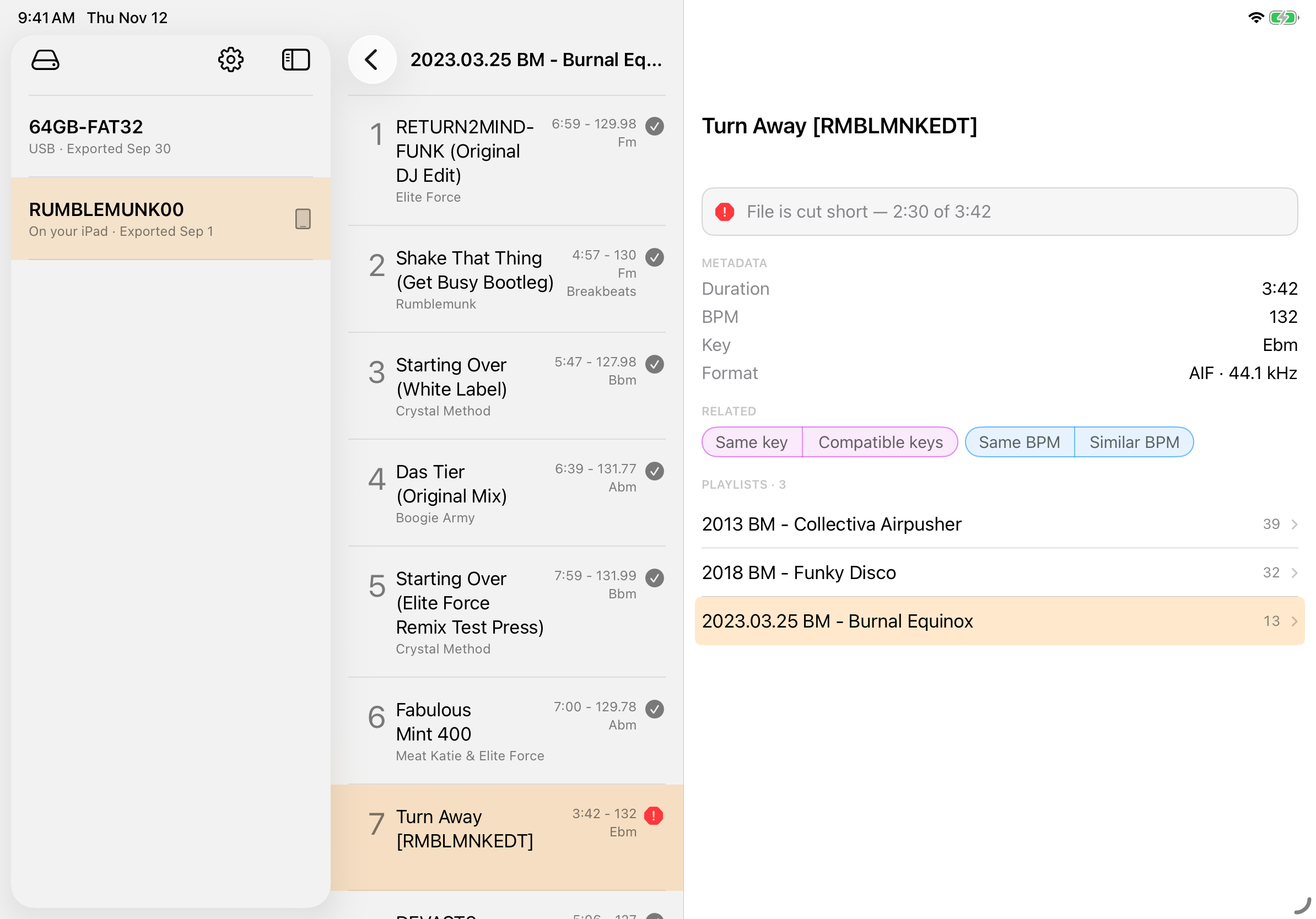
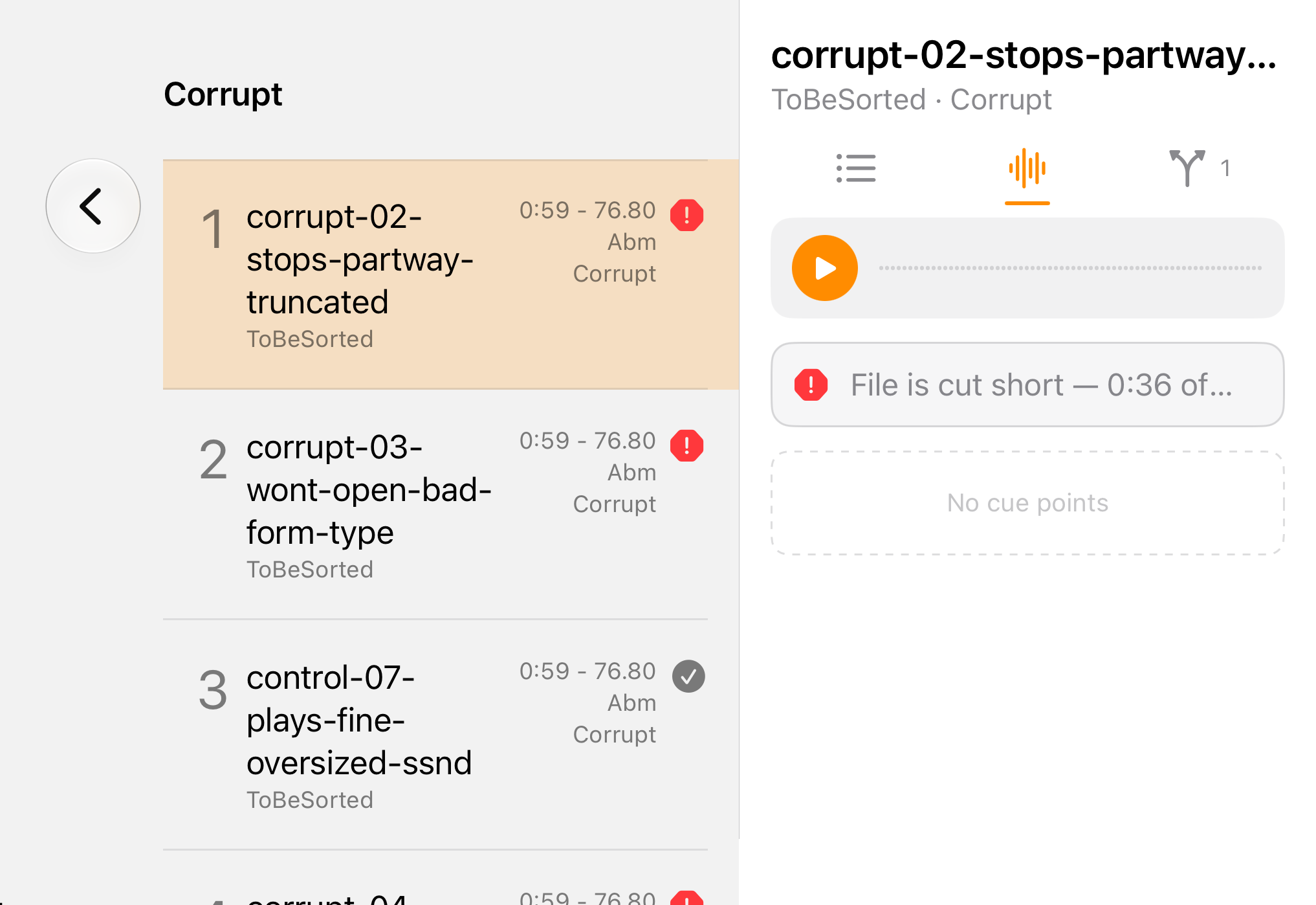
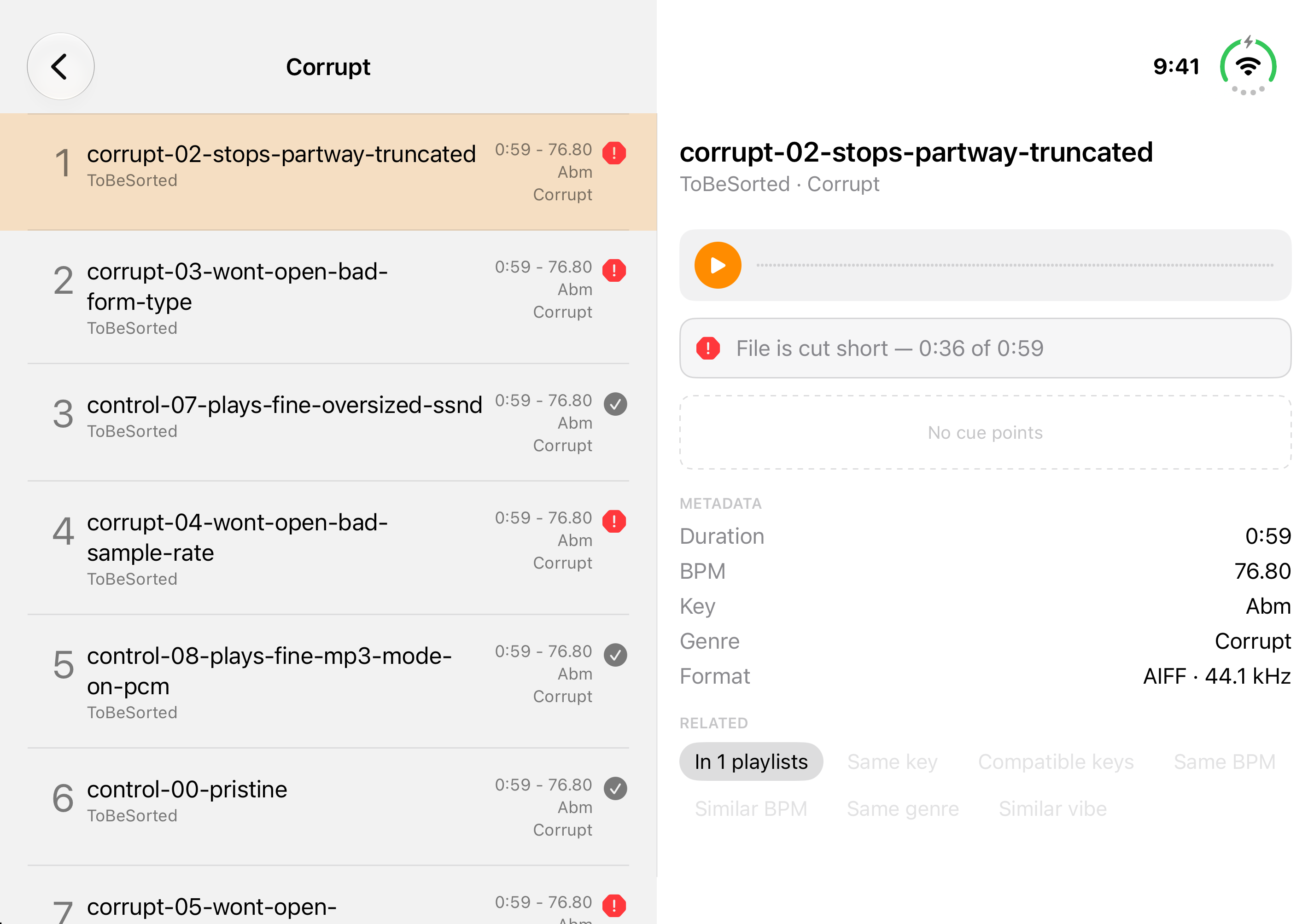
Check for Missing Files tells you every track on the drive has its audio file. But a file can be there and still let you down — cut short in a copy, damaged, or swapped for an edit rekordbox never re-analysed. Open a playlist and hit Verify Tracks for a deep verification that looks at each track the way a deck would: does it play all the way through, and do its beatgrid and cues still fit the audio? Each one gets a mark for what was found. Reading each track takes time, so it isn't run across the whole drive: you opt in a playlist at a time, or a track at a time, just by previewing it.
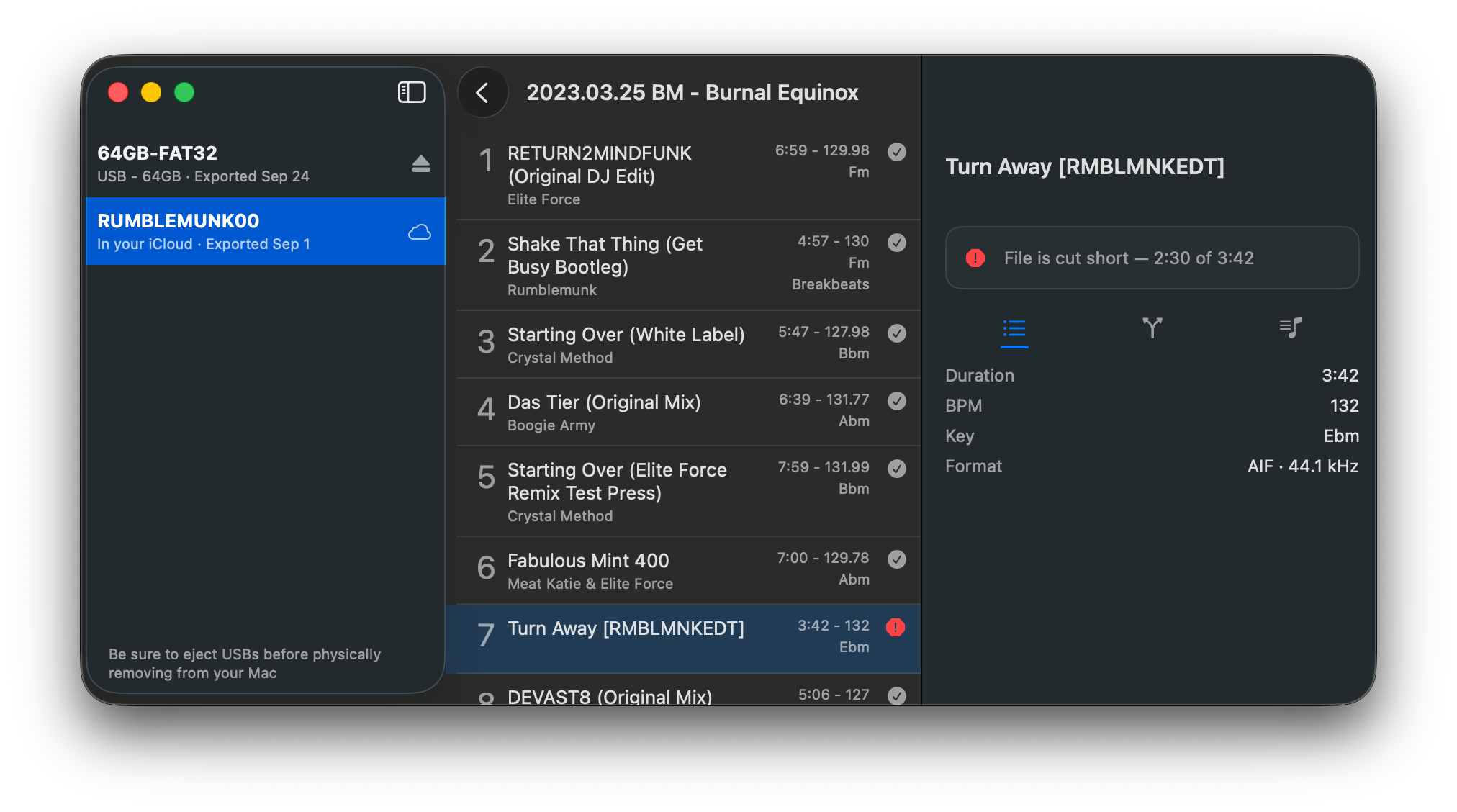
Each track, start to finishEvery second of it is read, then checked against the length rekordbox has for it — so a file that's been cut short still gets caught, even when it claims to be whole.
A mark beside every track when it's playable. when it plays but its analysis no longer fits — no analysis file, a beatgrid that stops short or runs long, a cue past the end. when it won't play, with the reason in the track's details.
Previewing checks tooEvery track you play is verified as it plays, so auditioning a set verifies it one track at a time — no pass needed.
Results that stay putKept per track and dated, shown in search results as well, and remembered via iCloud — so your phone knows what the Mac found, drive or no drive.
Track verification runs in the background while you browse. If the drive is disconnected and interrupts verification, simply reconnect and verify the playlist again — it will pick up where it left off.

Preview a track

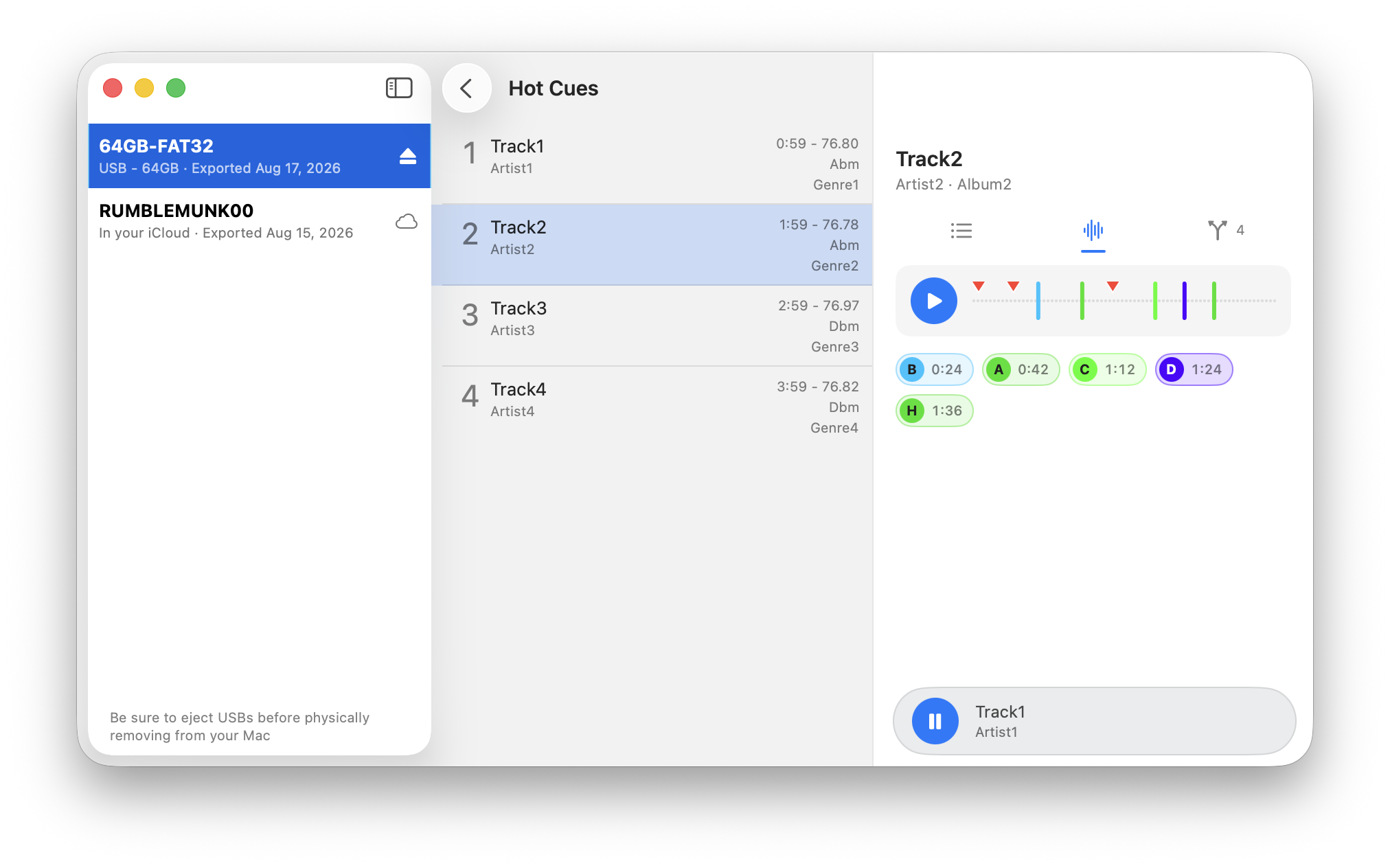
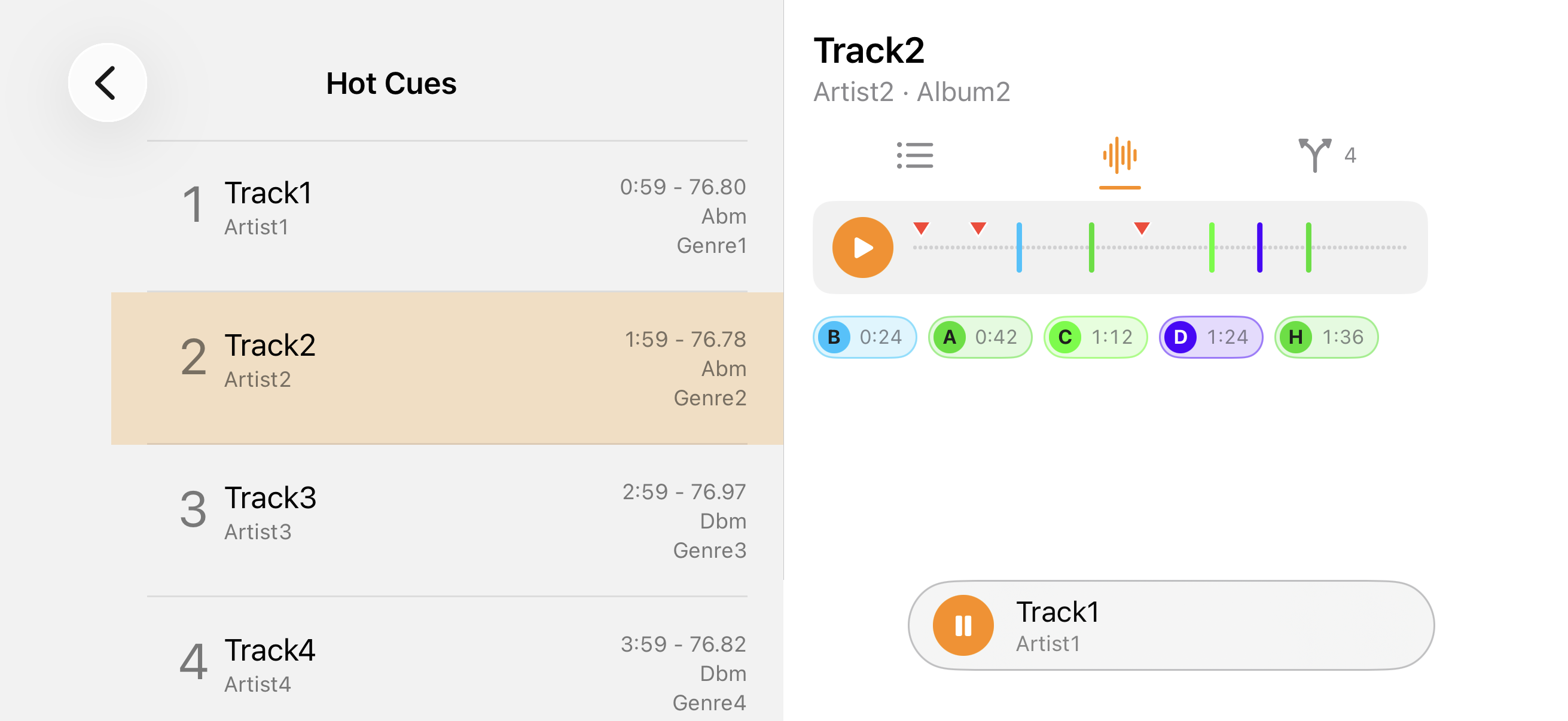
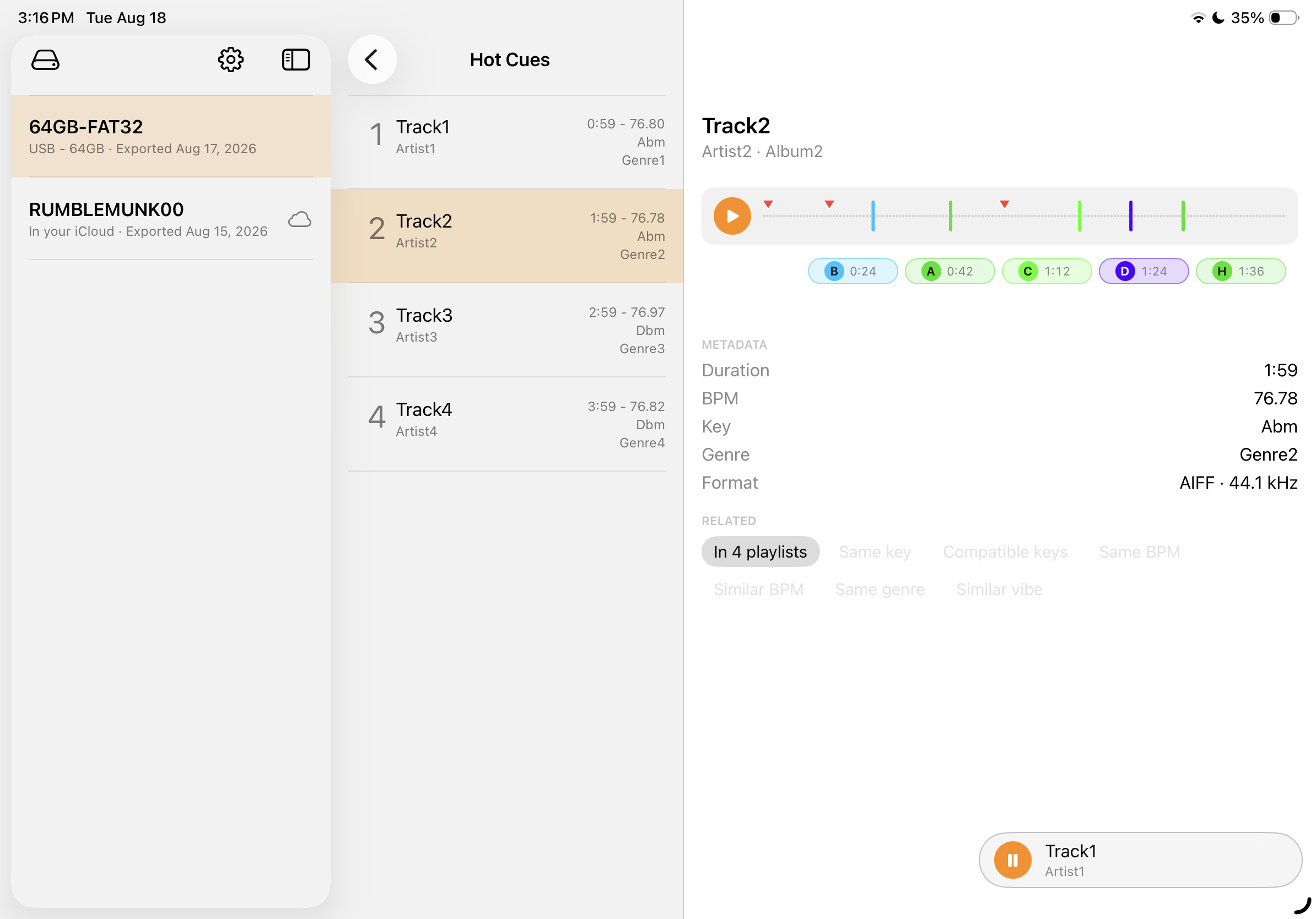
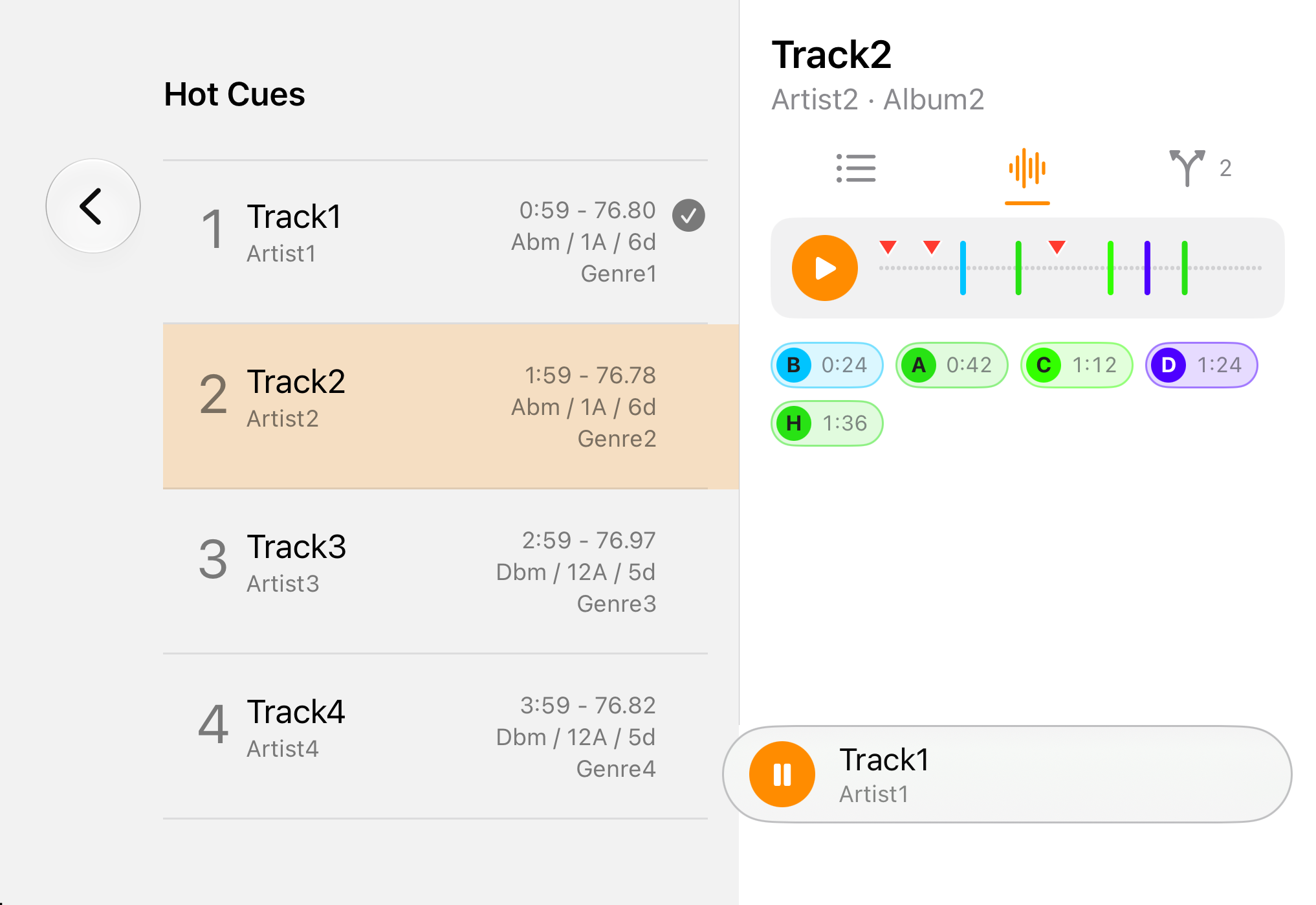
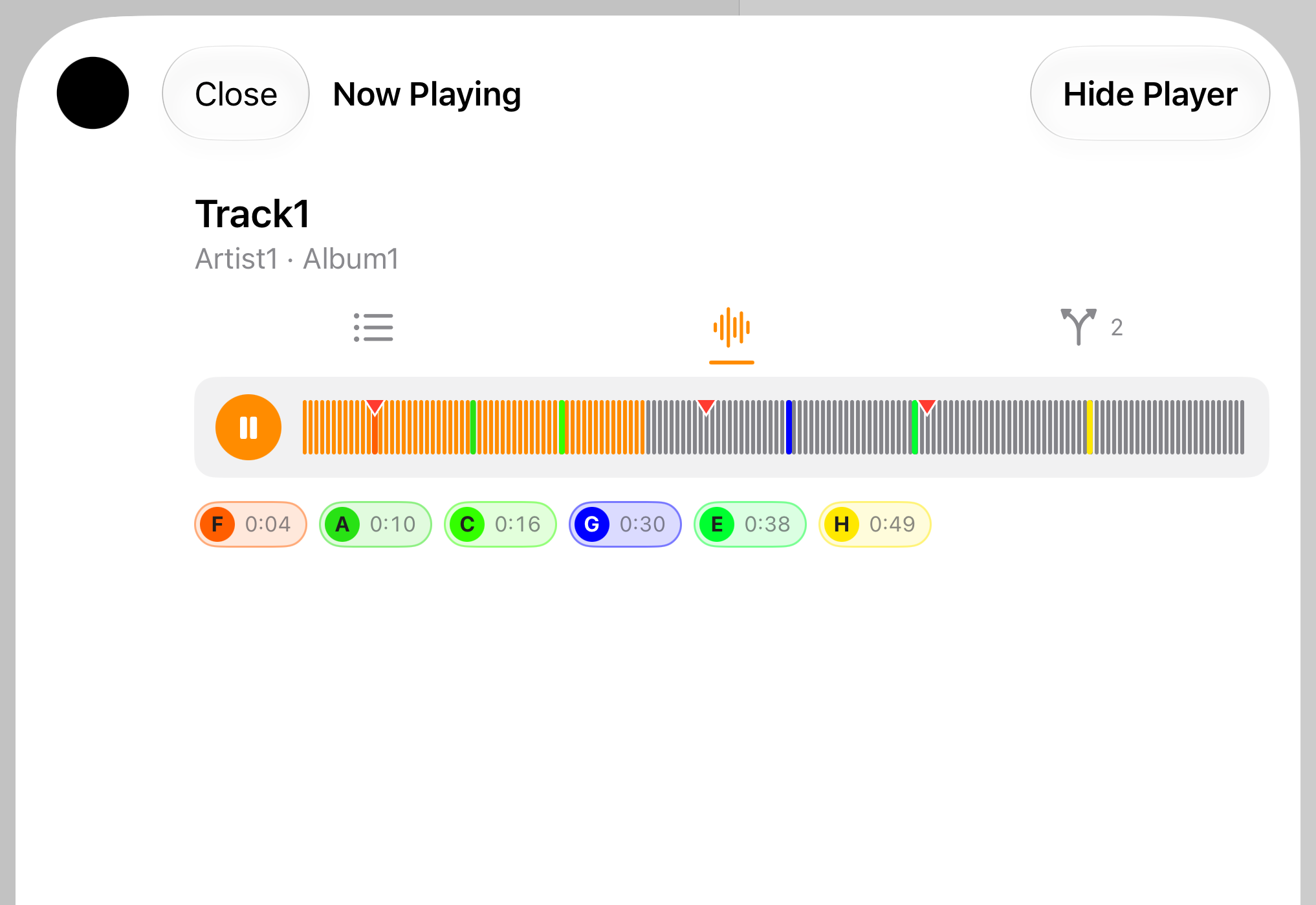
Hit play on any track and it starts — read off the drive as it plays, and gone again when you're done. Nothing is written to your phone. It's a preview, not a deck: enough to settle which track this actually is when the title on its own isn't ringing a bell.
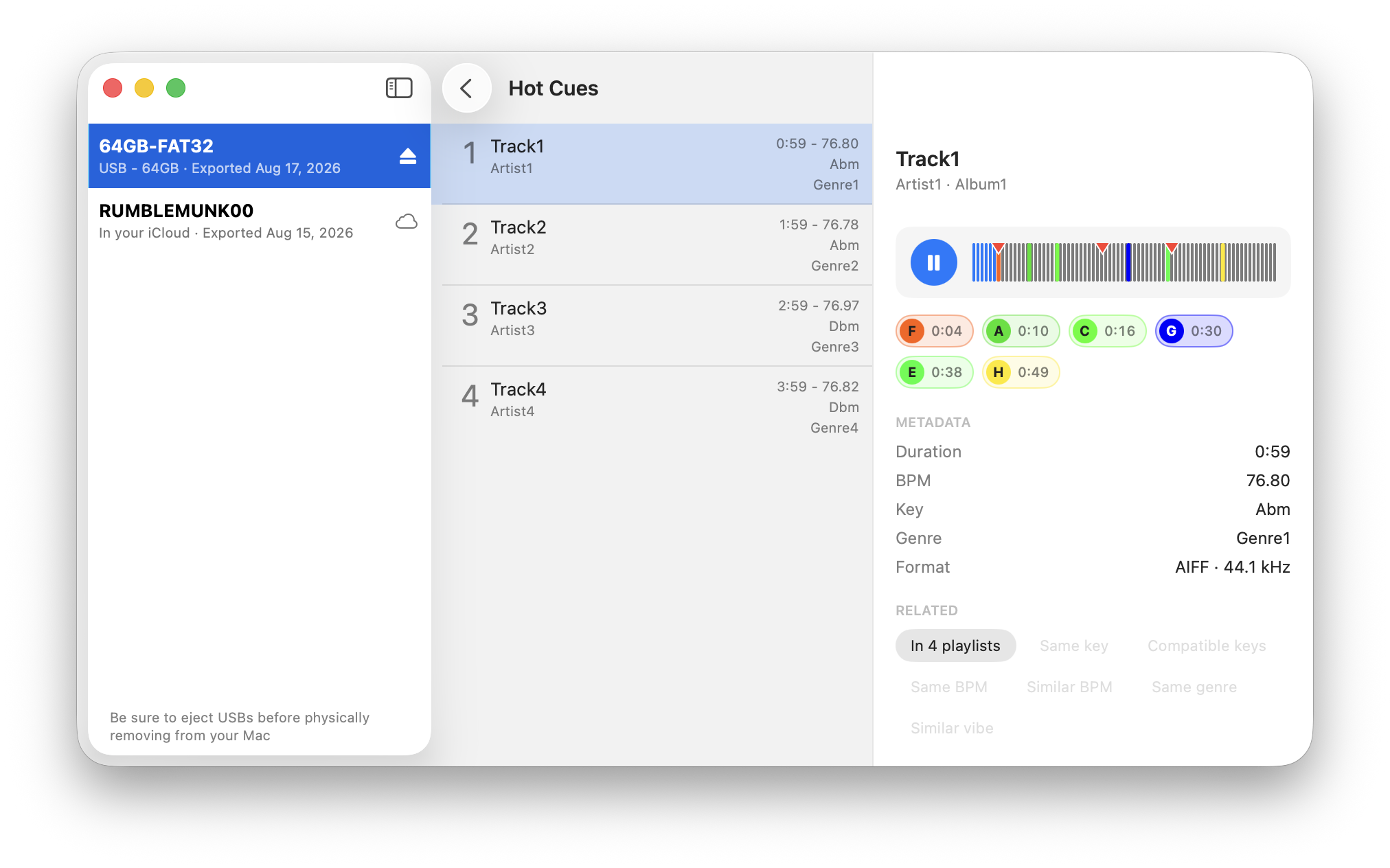
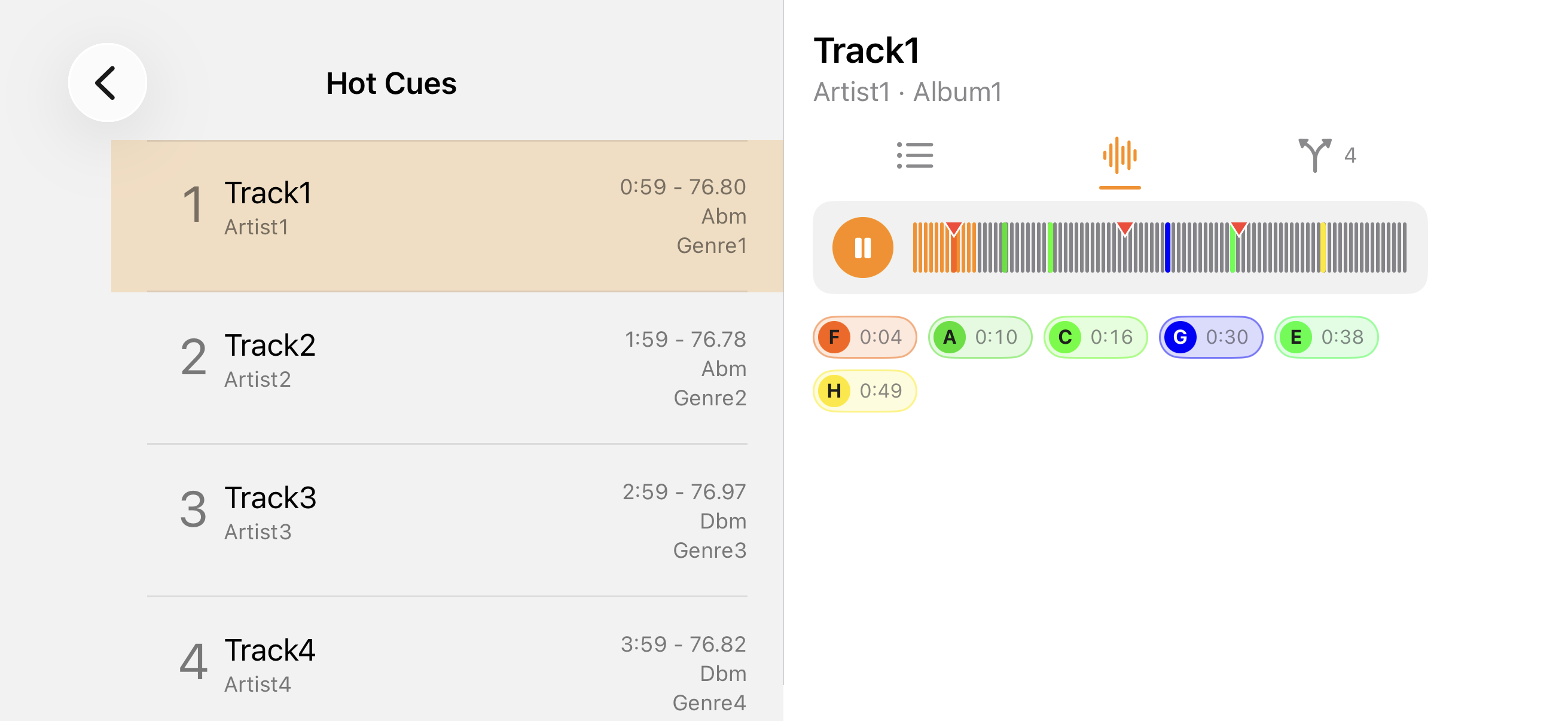
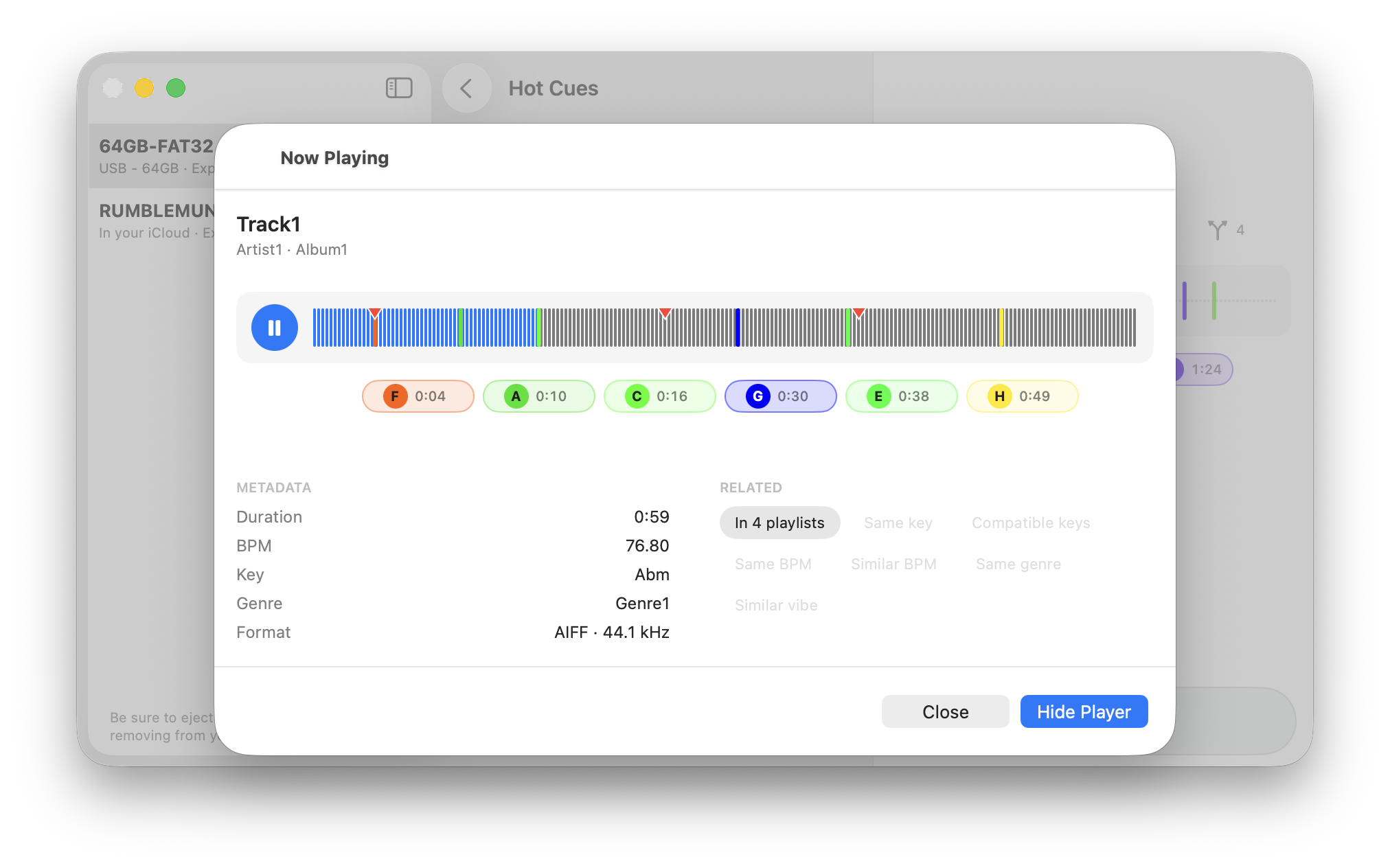
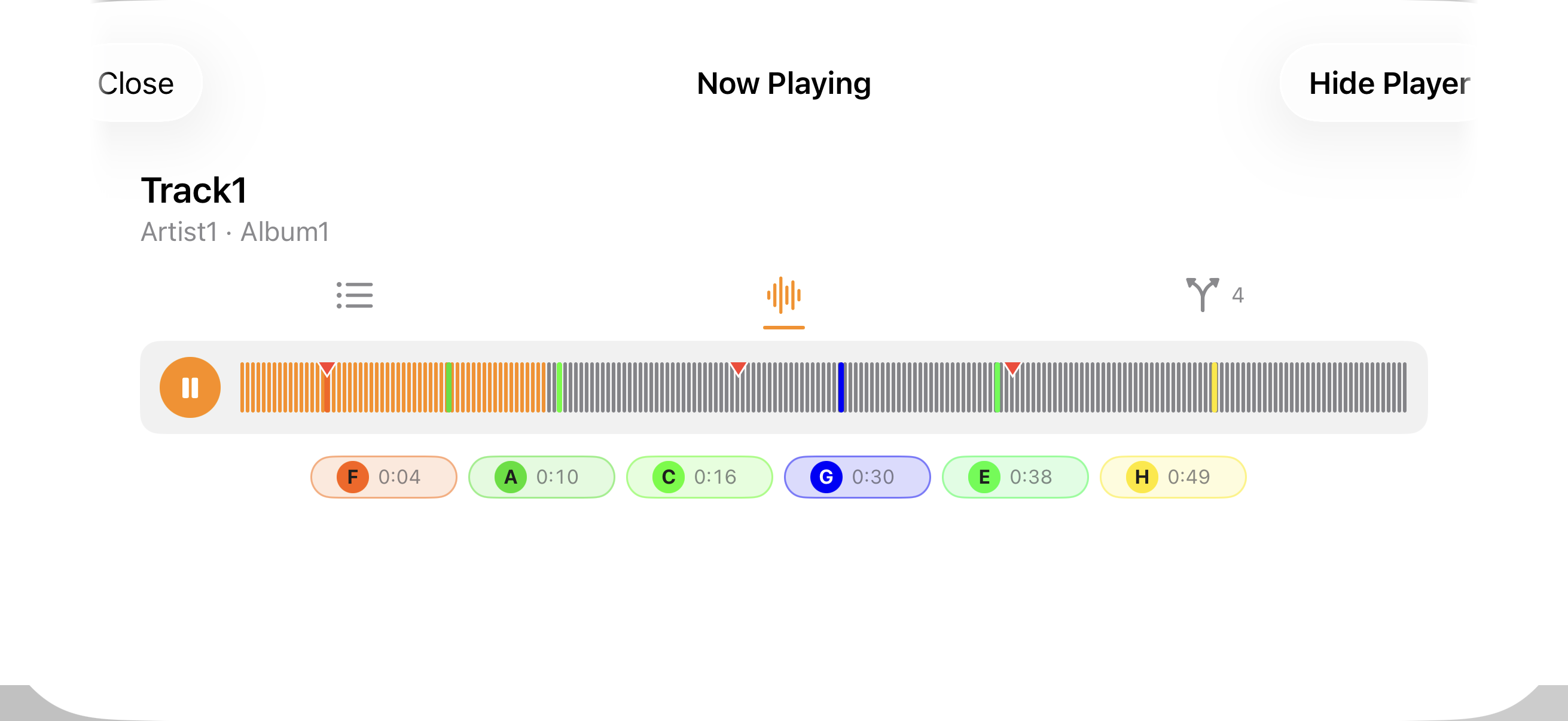
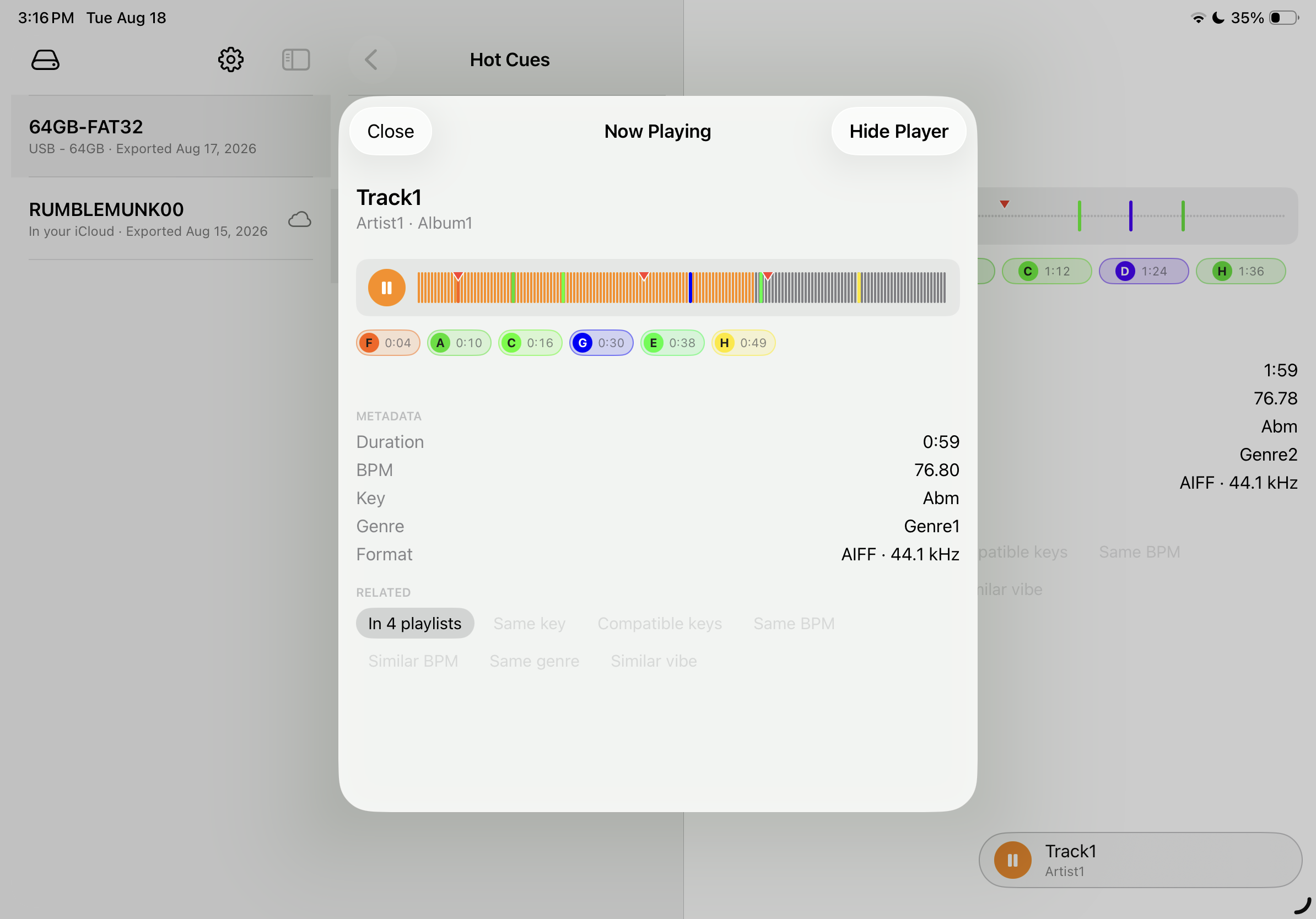
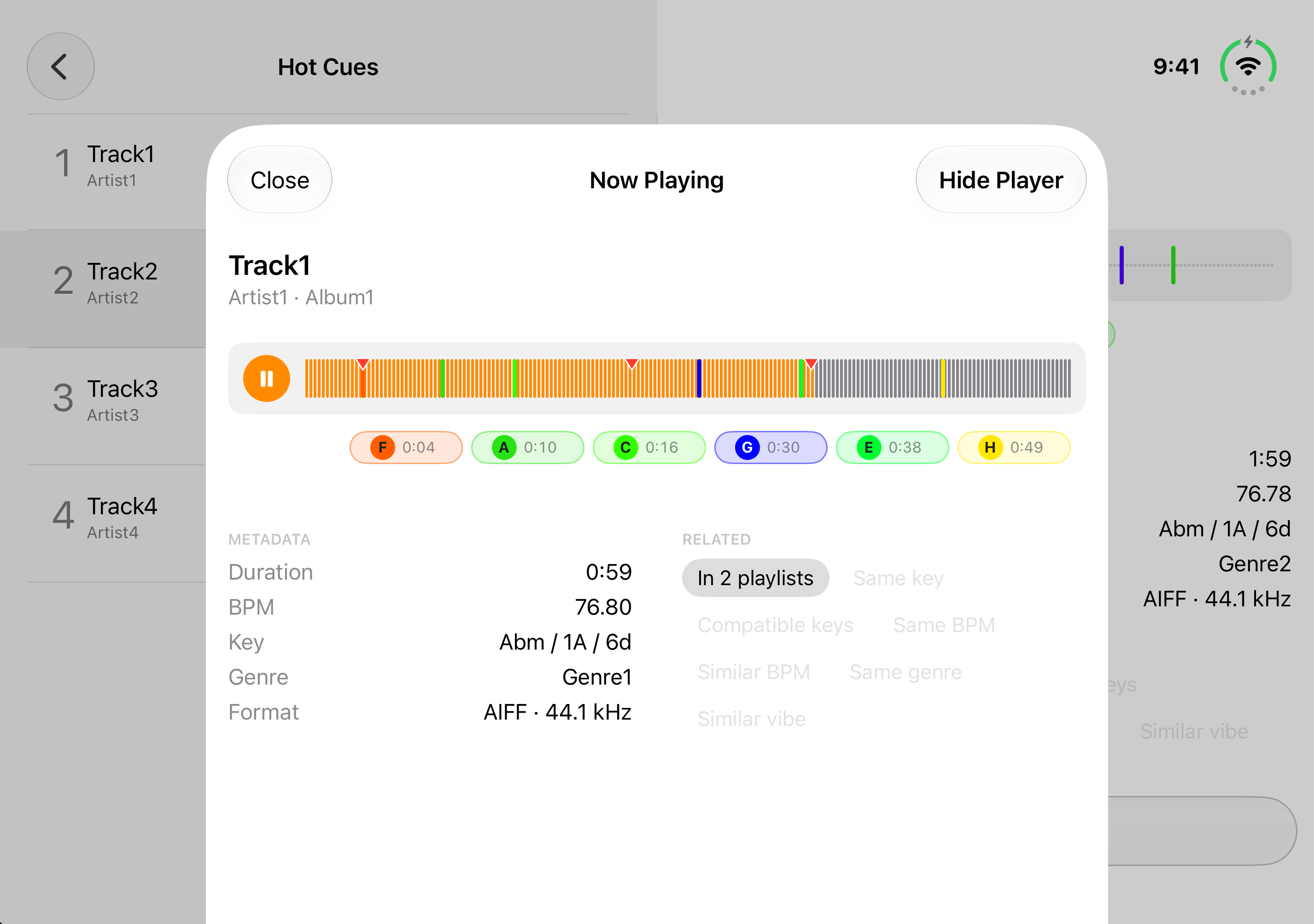
Straight off the stickThe audio is read from the drive to play it, and never saved to your device. The waveform is drawn from that audio too, not an estimate.
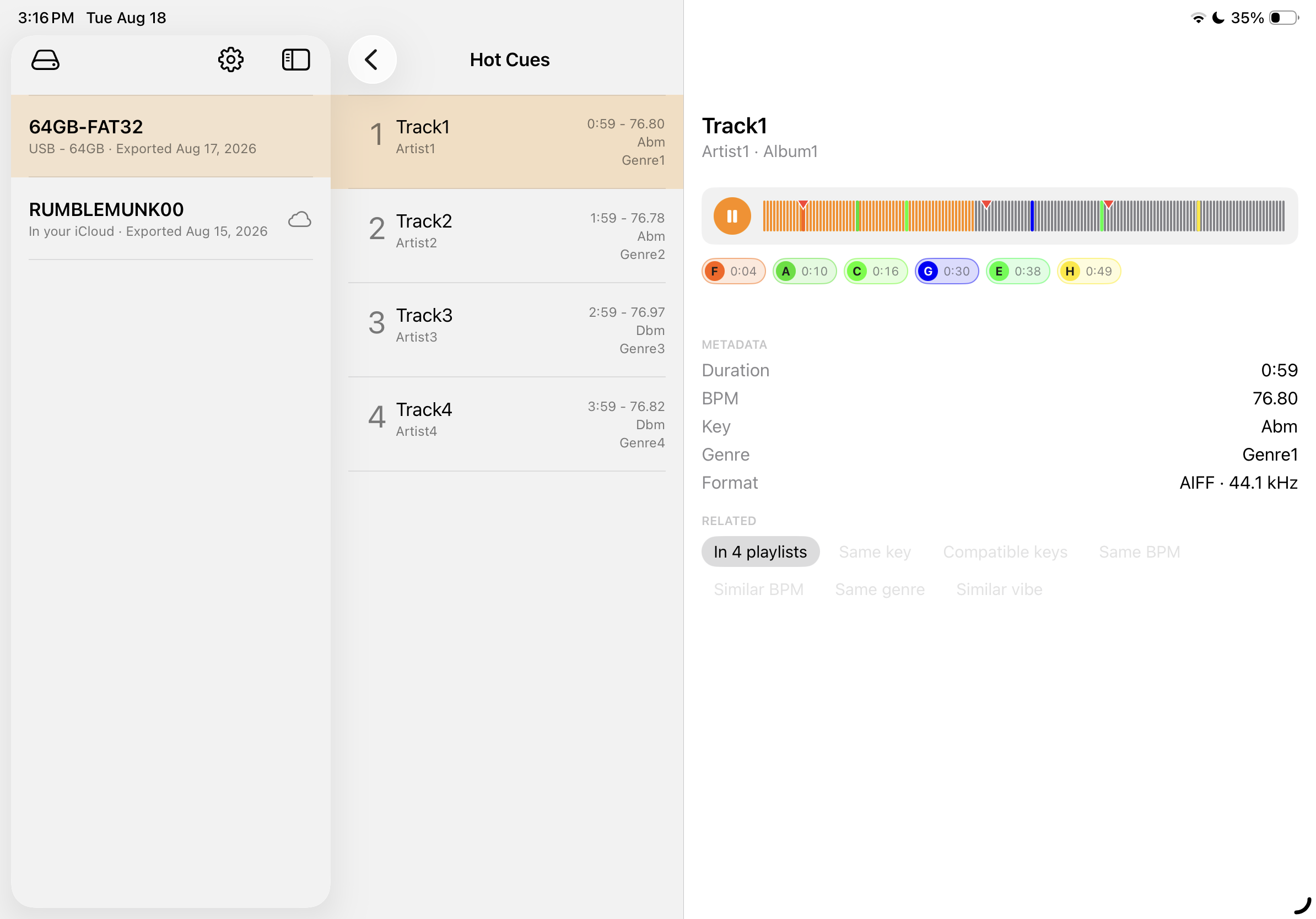
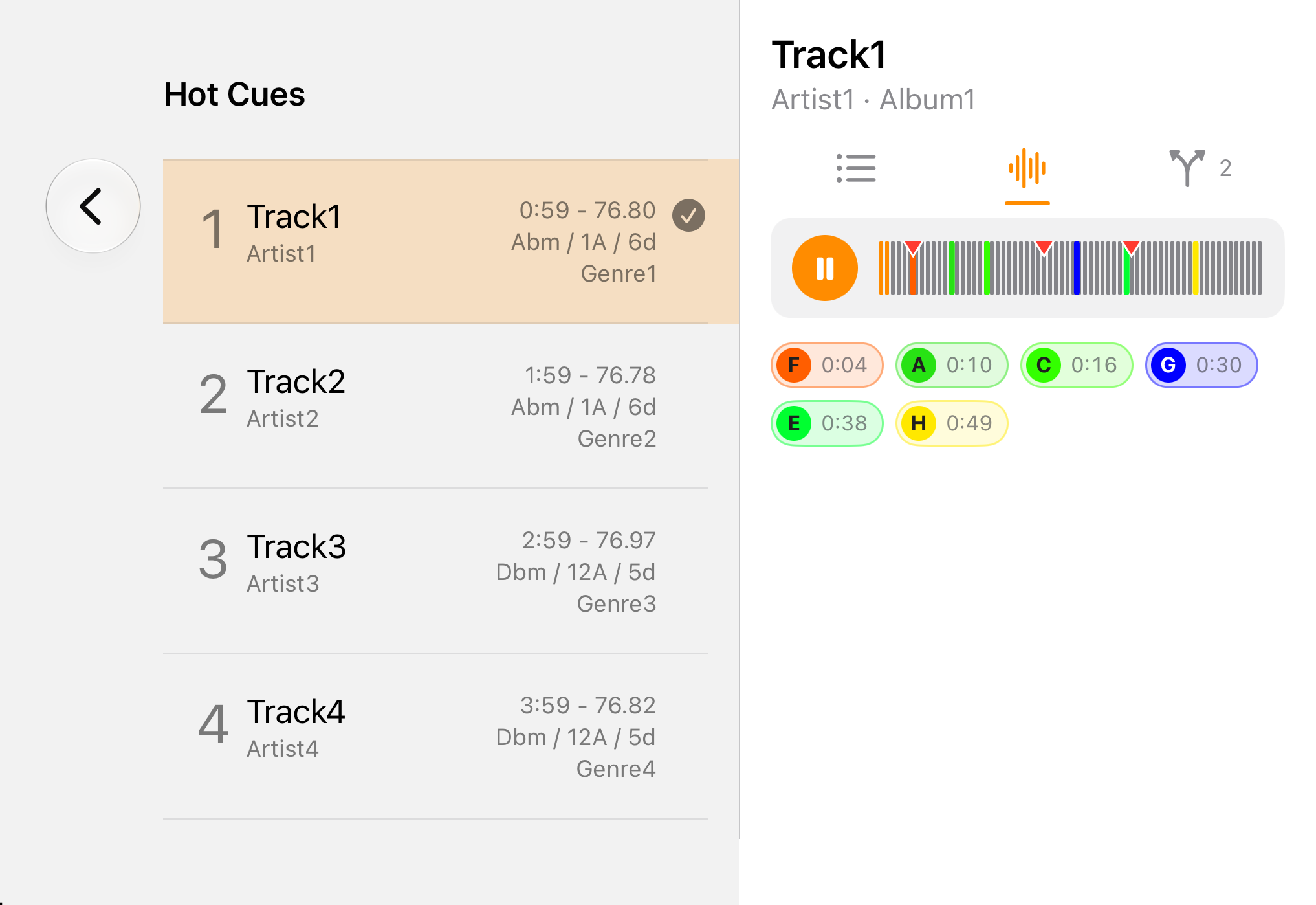
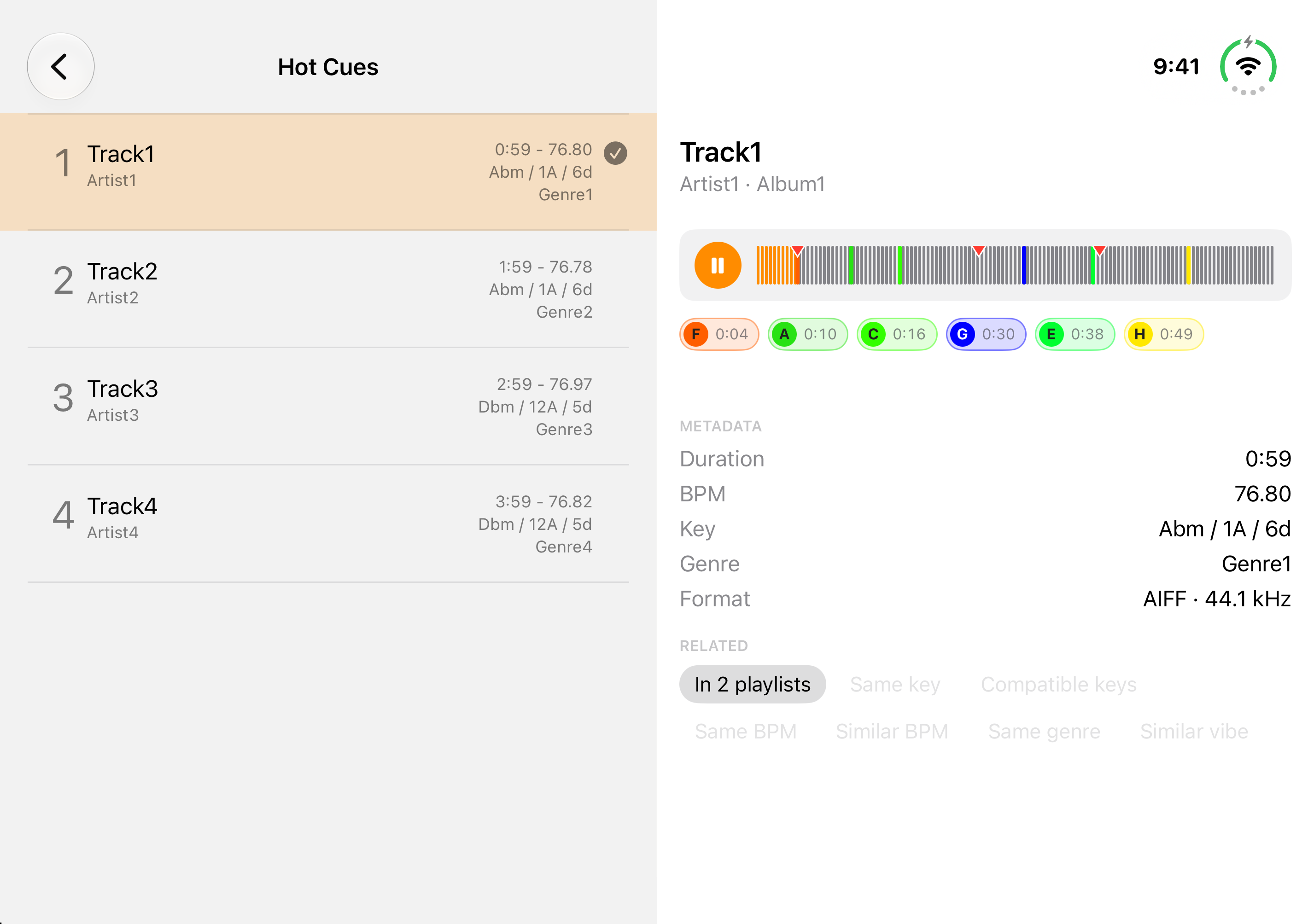
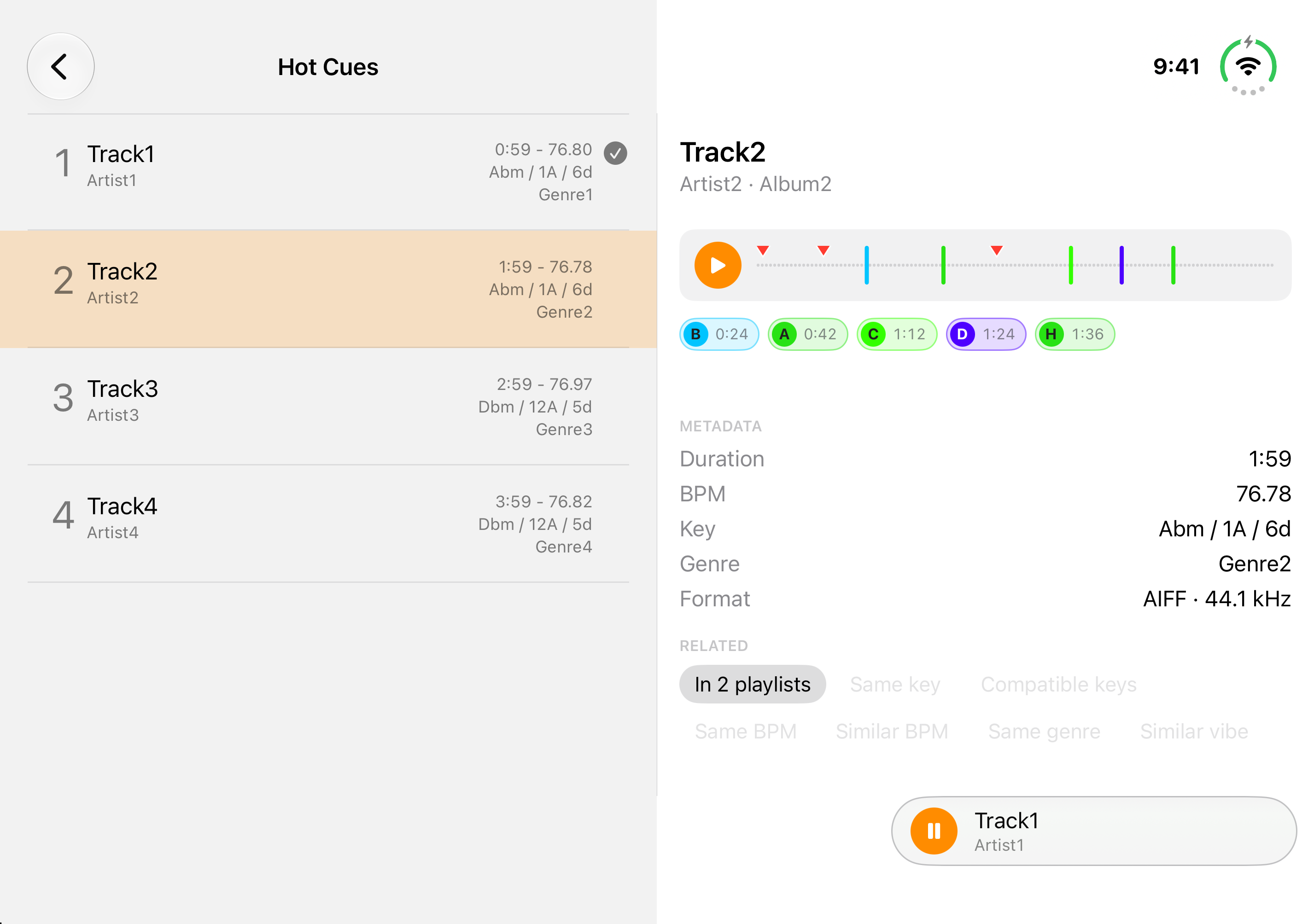
Hot cues and memory cuesJust like your CDJs — tap a hot cue to play from there, or tap anywhere in the waveform once it's playing.
Keeps playing while you browseA small player sits at the bottom edge. Tap it for the track's details, or stop it from there. On iPhone and iPad it keeps going when you leave the app as well, with the usual controls on your Lock Screen.
MP3, AAC, ALAC, WAV, AIFFThe formats rekordbox exports. FLAC isn't in yet.
A track that's already playing is held in memory, so it carries on even if the drive comes out mid-preview — but starting the next one needs the drive back.

Find what mixes next

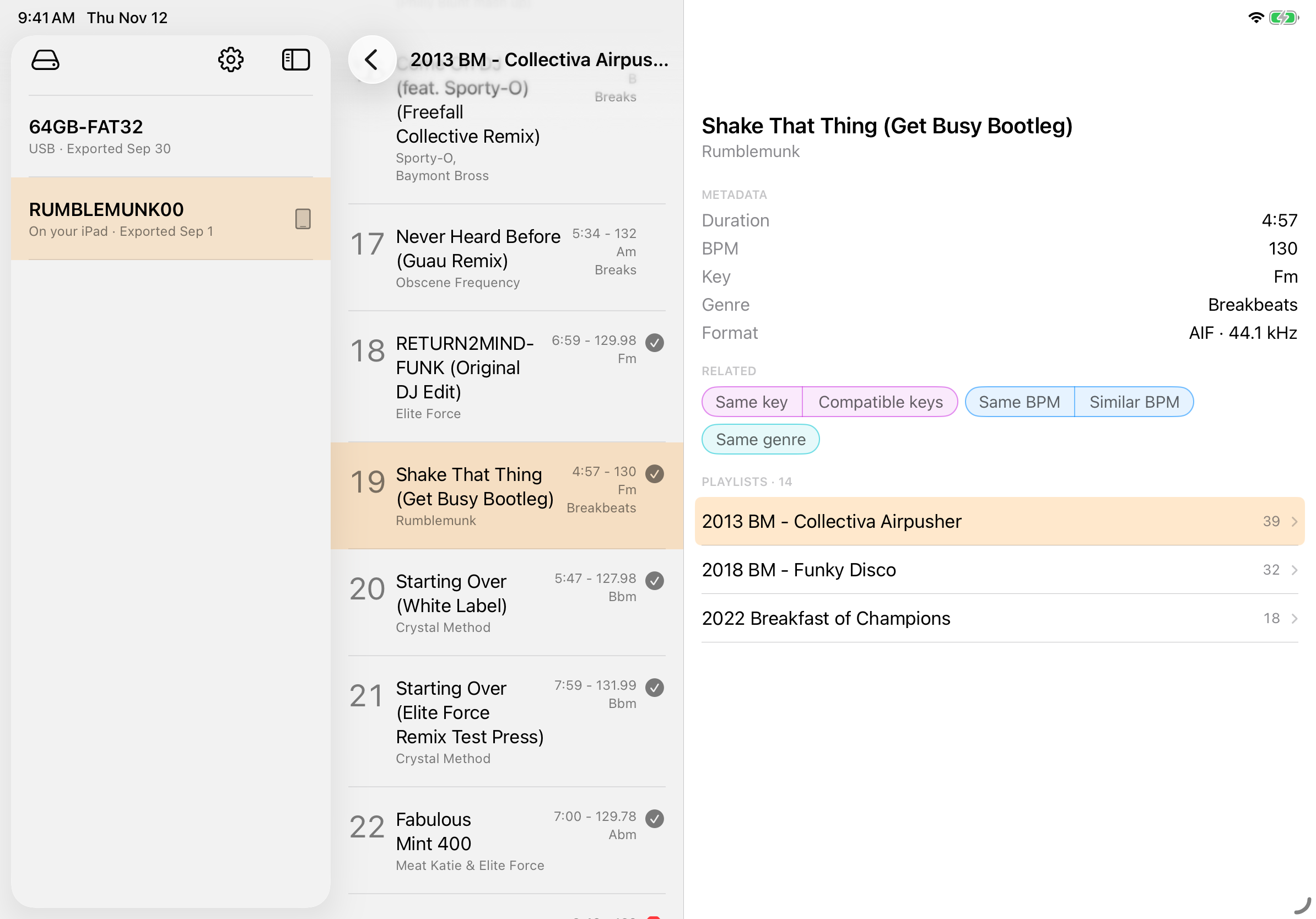
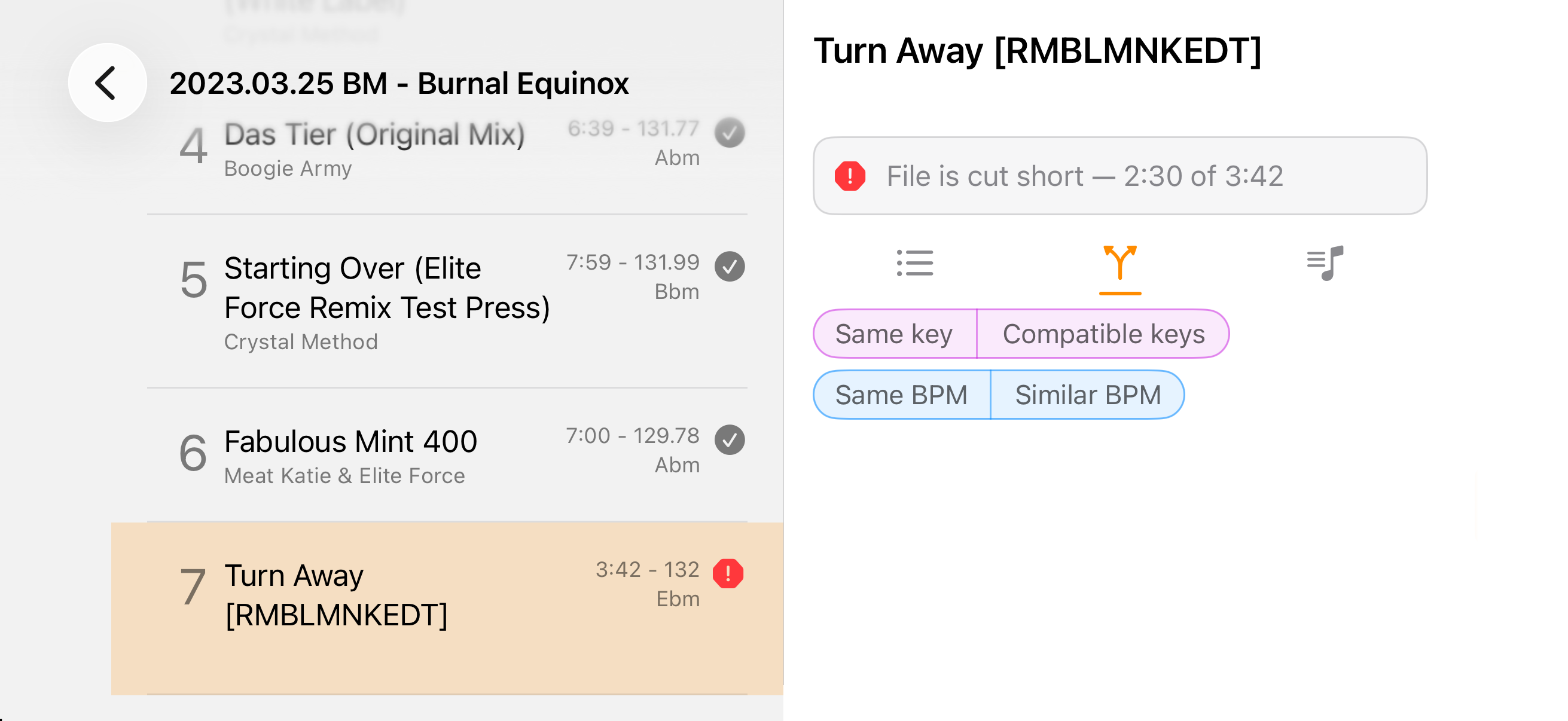
Every track already knows what goes with it: its key, its tempo, its genre. Under Related in a track's details, tap one and its library is searched for you — the same key or the keys that mix with it, the same BPM or one within reach of the pitch fader, the same genre. Turn on one from each and they combine, so compatible keys at a similar tempo in the same genre is three taps. The track stays in view the whole time, and the search is written into the field in plain words, ready to change.
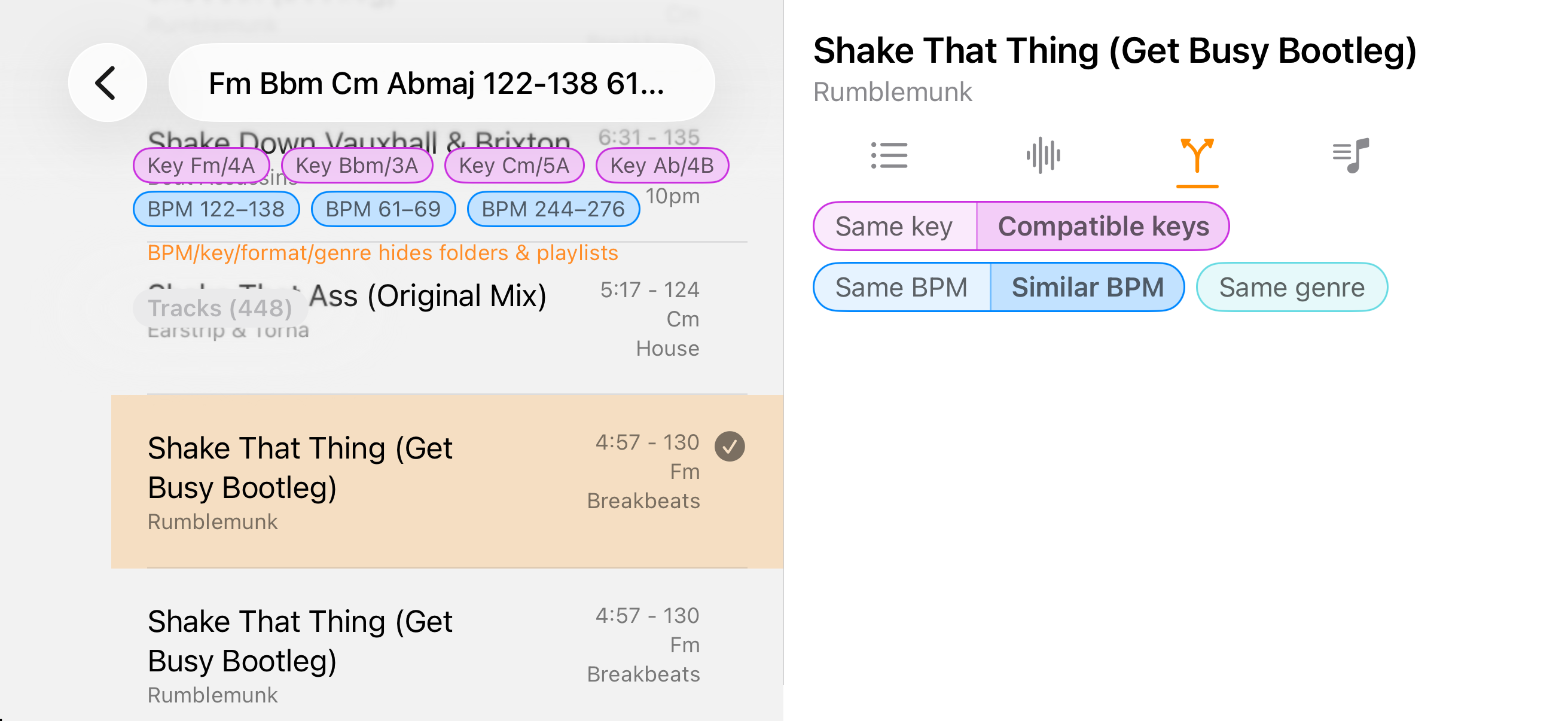
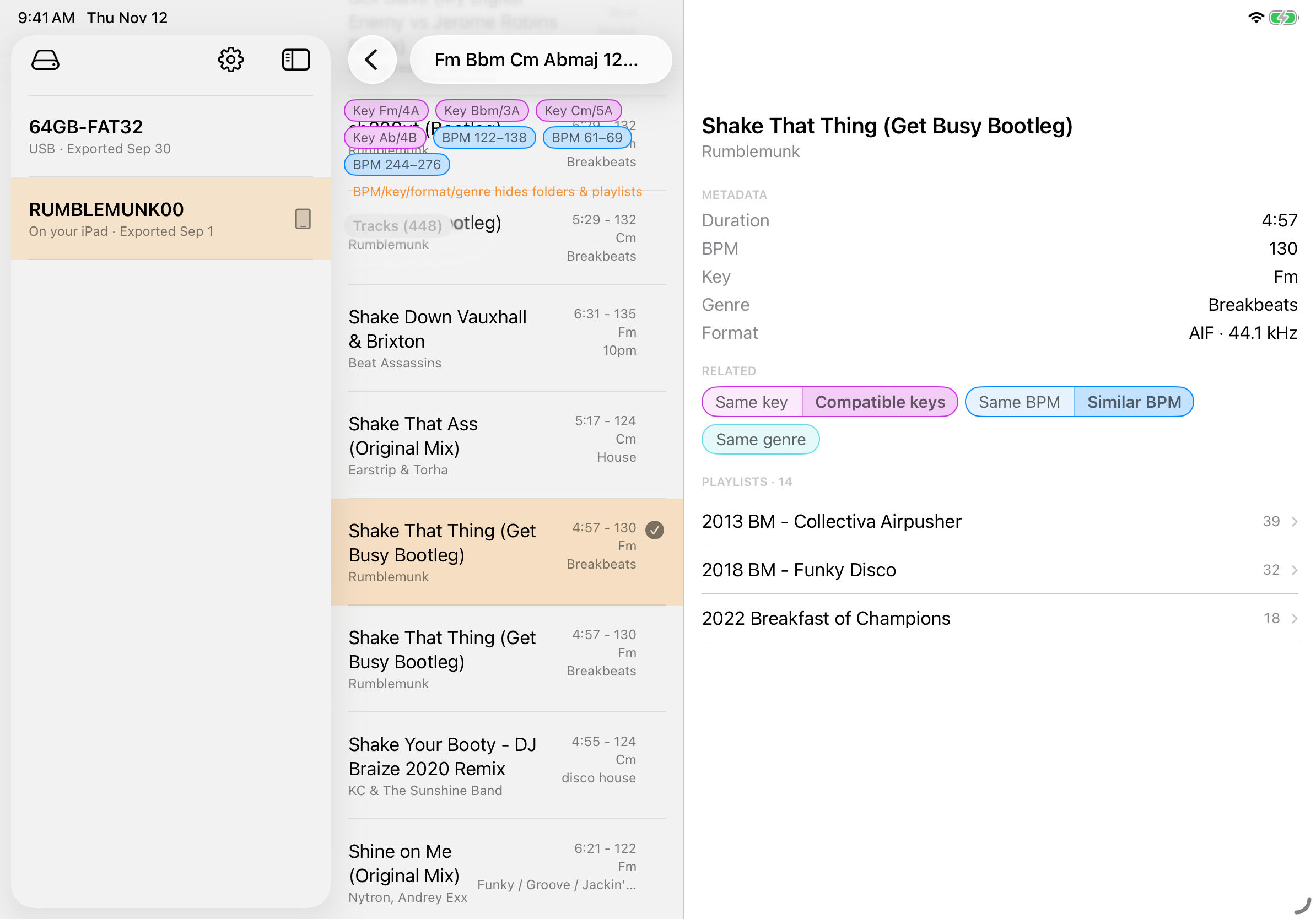
Keys that mixCompatible keys finds its own key, a step either way round the wheel, and its relative major or minor. Written Am or 8A — your choice, in Settings.
Within reach of the faderSimilar BPM is 6% either way, a CDJ's narrowest pitch range, plus half and double time — so a 128 finds the 64s and the 256s too.
Genre, exactlySame genre finds that genre and nothing else. Type one in quotes, like “Deep House”, to search it the same way.
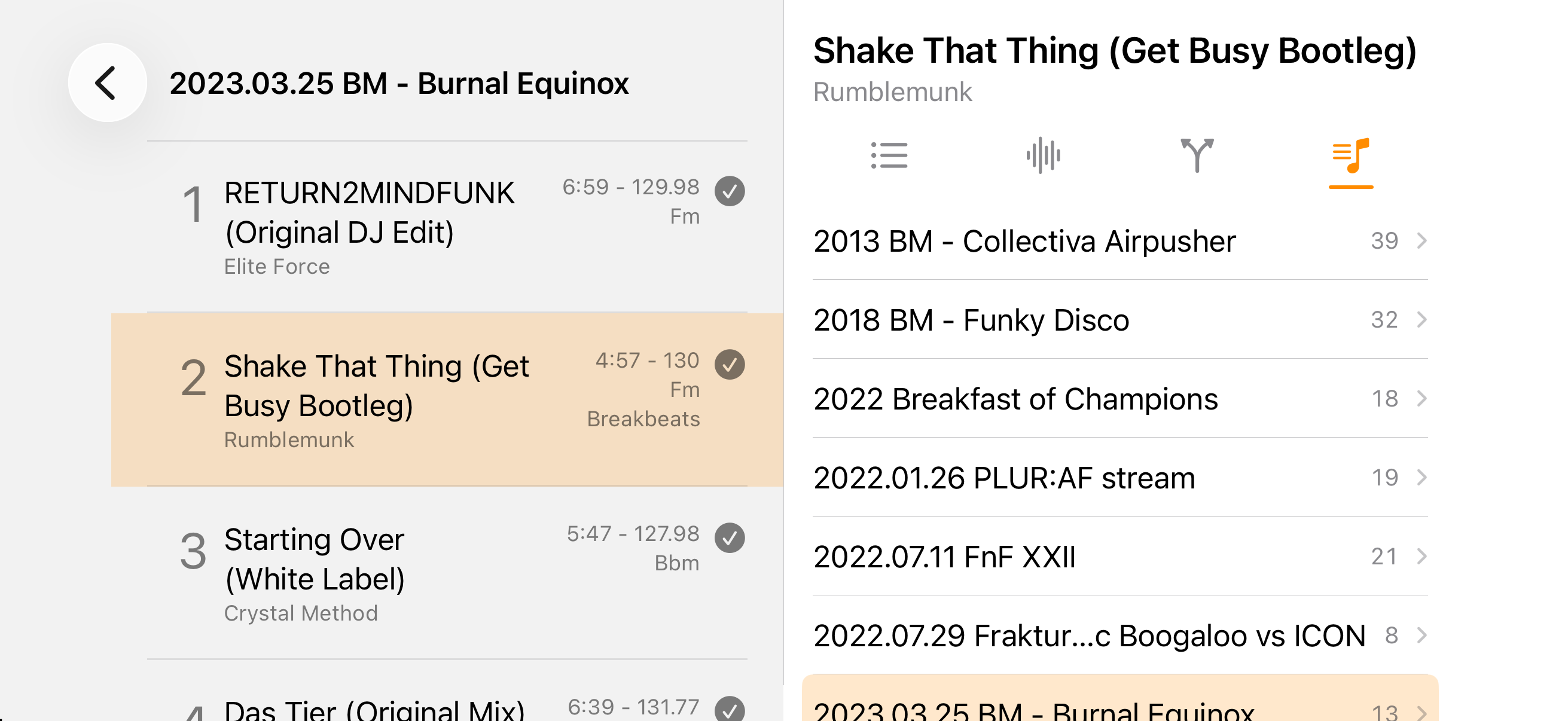
Every playlist it's inA track's details list its playlists. Tap one to open it right at that track, and the details stay put.
Related tracks come from the track's own library — the Device Library or OneLibrary you picked it from.